3  Plots and skills

3.1 Three main verbs (e.g. bar plot)

Tip

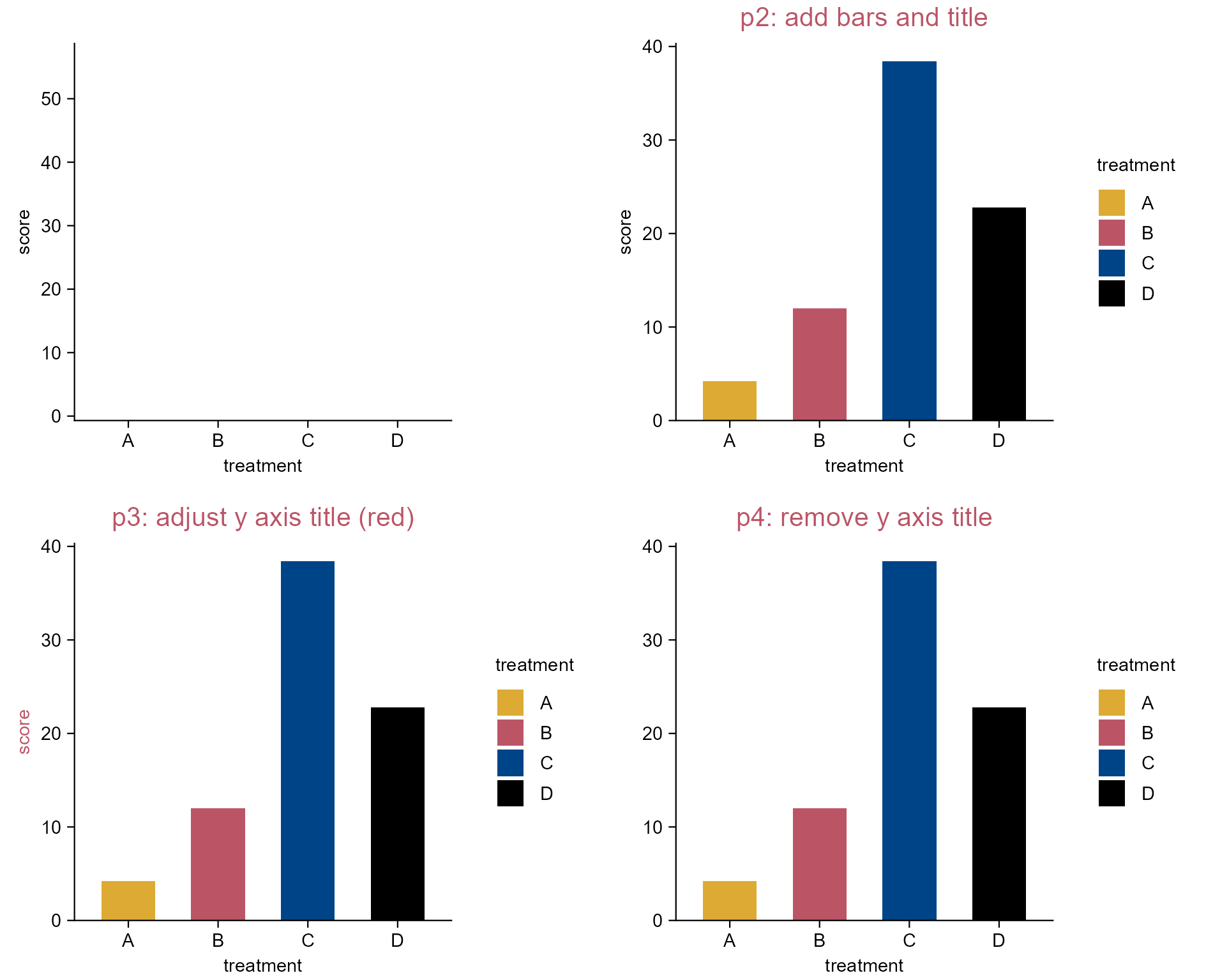
There are three main verbs in tidyplots:

  • add 👉 to add element to the plots.
  • adjust 👉 to modify elements in the plot.
  • remove 👉 to remove elements form the plot.
library(tidyplots)

# View top 10 rows of the columns used
study |> 
  dplyr::select(treatment, score) |> 
  dplyr::slice_head(n = 10)
# A tibble: 10 × 2
   treatment score
   <chr>     <dbl>
 1 A             2
 2 A             4
 3 A             5
 4 A             4
 5 A             6
 6 B             9
 7 B             8
 8 B            12
 9 B            15
10 B            16
# Plot
p1 <- study |> 
  tidyplot(
    x = treatment, 
    y = score, 
    color = treatment)

p2 <- p1 |> 
  add_mean_bar() |>
  add_title(title = "p2: add bars and title")

p3 <- p2 |> 
  adjust_title(title = "p3: adjust y axis title (red)") |> 
  adjust_y_axis_title(color = "#bb5566")

p4 <- p3 |> 
  adjust_title(title = "p4: remove y axis title") |> 
  remove_y_axis_title()
Note

Explore the package index (https://jbengler.github.io/tidyplots/reference/index.html) for a full list of functions.

The three main verbs of tidyplots.

3.2 The scheme of add functions (e.g. bar plot)

Tip

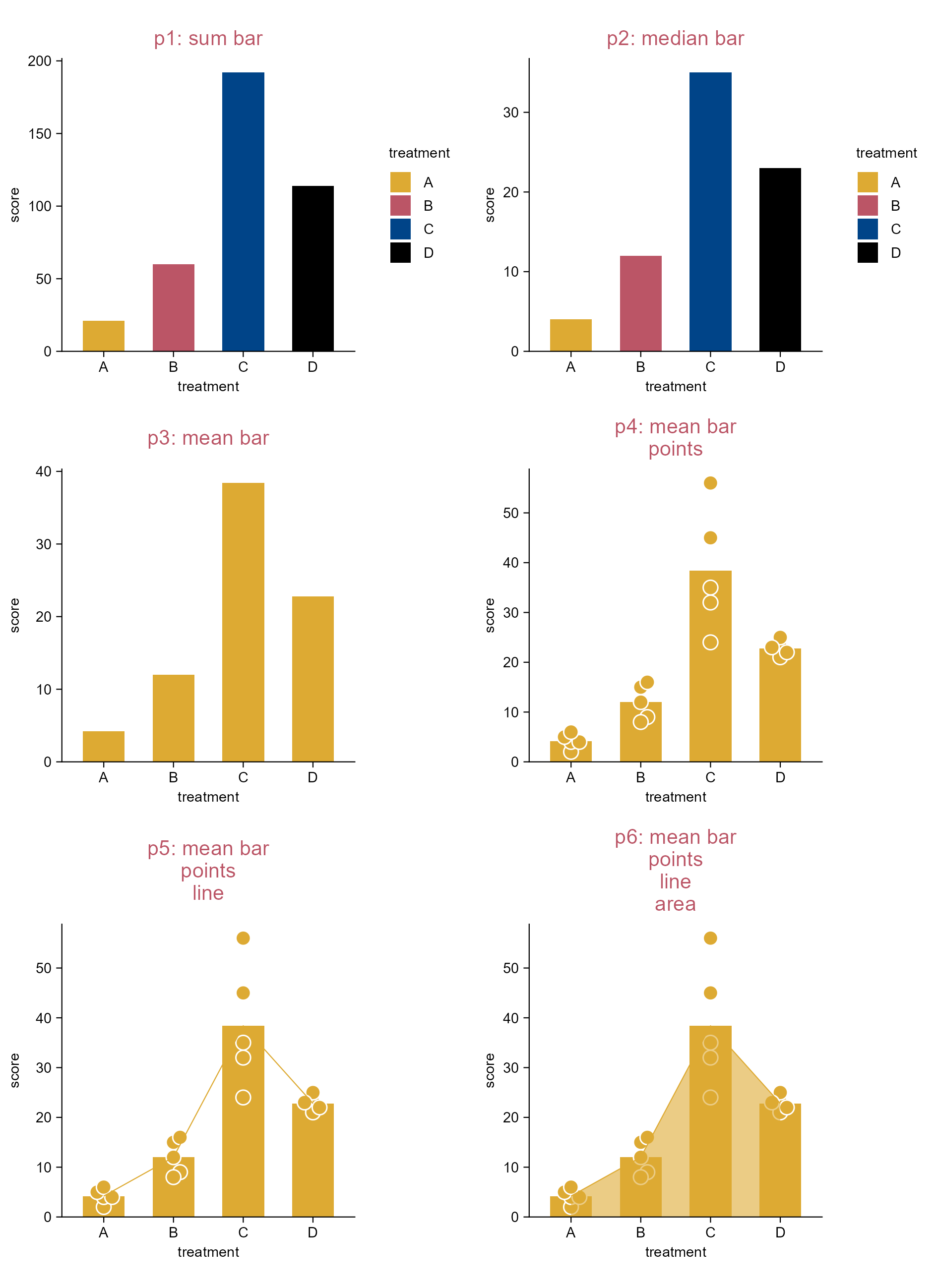
Most add funtions in tidyplots follow the same scheme

add_<statistical-entity>_<graphical-representation>

  • add_mean_dot(), add_mean_dash(), add_mean_bar(), add_median_bar(), add_sum_bar() etc.

  • add_sem_errorbar(), add_sd_errorbar() etc.

library(tidyplots)

# View top 10 rows of the columns used
study |> 
  dplyr::select(treatment, score) |> 
  dplyr::slice_head(n = 10)
# A tibble: 10 × 2
   treatment score
   <chr>     <dbl>
 1 A             2
 2 A             4
 3 A             5
 4 A             4
 5 A             6
 6 B             9
 7 B             8
 8 B            12
 9 B            15
10 B            16
# Plot
p1 <- study |> 
  tidyplot(x = treatment, y = score, color = treatment) |> 
  add_sum_bar() |> add_title(title = "p1: sum bar")

p2 <- study |> 
  tidyplot(x = treatment, y = score, color = treatment) |> 
  add_median_bar() |> add_title(title = "p2: median bar")

p3 <- study |> 
  tidyplot(x = treatment, y = score) |> 
  add_mean_bar() |> add_title(title = "p3: mean bar")

p4 <- p3 |> 
  adjust_title(title = paste("p4: mean bar", "points", sep = "\n")) |> 
  add_data_points_beeswarm(white_border = TRUE, size = 2)

p5 <- p4 |> 
  adjust_title(title = paste("p5: mean bar", "points", "line", sep = "\n")) |> 
  add_mean_line()

p6 <- p5 |> 
  adjust_title(title = paste(
    "p6: mean bar", "points", "line", "area", sep = "\n")) |> 
  add_mean_area(alpha = 0.6)

The scheme of add functions.

3.3 Color alpha vs. saturation (e.g. bar plot)

library(tidyplots)

# View top 10 rows of the columns used
study |> 
  dplyr::select(treatment, score) |> 
  dplyr::slice_head(n = 10)
# A tibble: 10 × 2
   treatment score
   <chr>     <dbl>
 1 A             2
 2 A             4
 3 A             5
 4 A             4
 5 A             6
 6 B             9
 7 B             8
 8 B            12
 9 B            15
10 B            16
# Plot
p1 <- study |> 
  tidyplot(
    x = treatment, 
    y = score, 
    color = treatment) |>
  add_annotation_text(
    text = c("see me?", "see me?"), 
    x = c(2, 3), 
    y = 100, 
    angle = 90, 
    color = "#bb5566", 
    fontface = "bold") |> 
  add_title(title = "p1") |> 
  adjust_y_axis(limit = c(0, 200)) |> 
  adjust_x_axis(limit = c(1, 4))

p2 <- p1 |> 
  adjust_title(title = "p2") |> 
  add_sum_bar()

p3 <- p1 |> 
  adjust_title(title = "p3: decreased intensity via `alpha`") |> 
  add_sum_bar(alpha = 0.5)

p4 <- p2 |> 
  adjust_title(title = "p4: decreased intensity via `saturation`") |>
  adjust_colors(
    new_colors = c(
      "#ddaa33", 
      "#bb5566", 
      "#004488", 
      "#000000"), 
    saturation = 0.5)

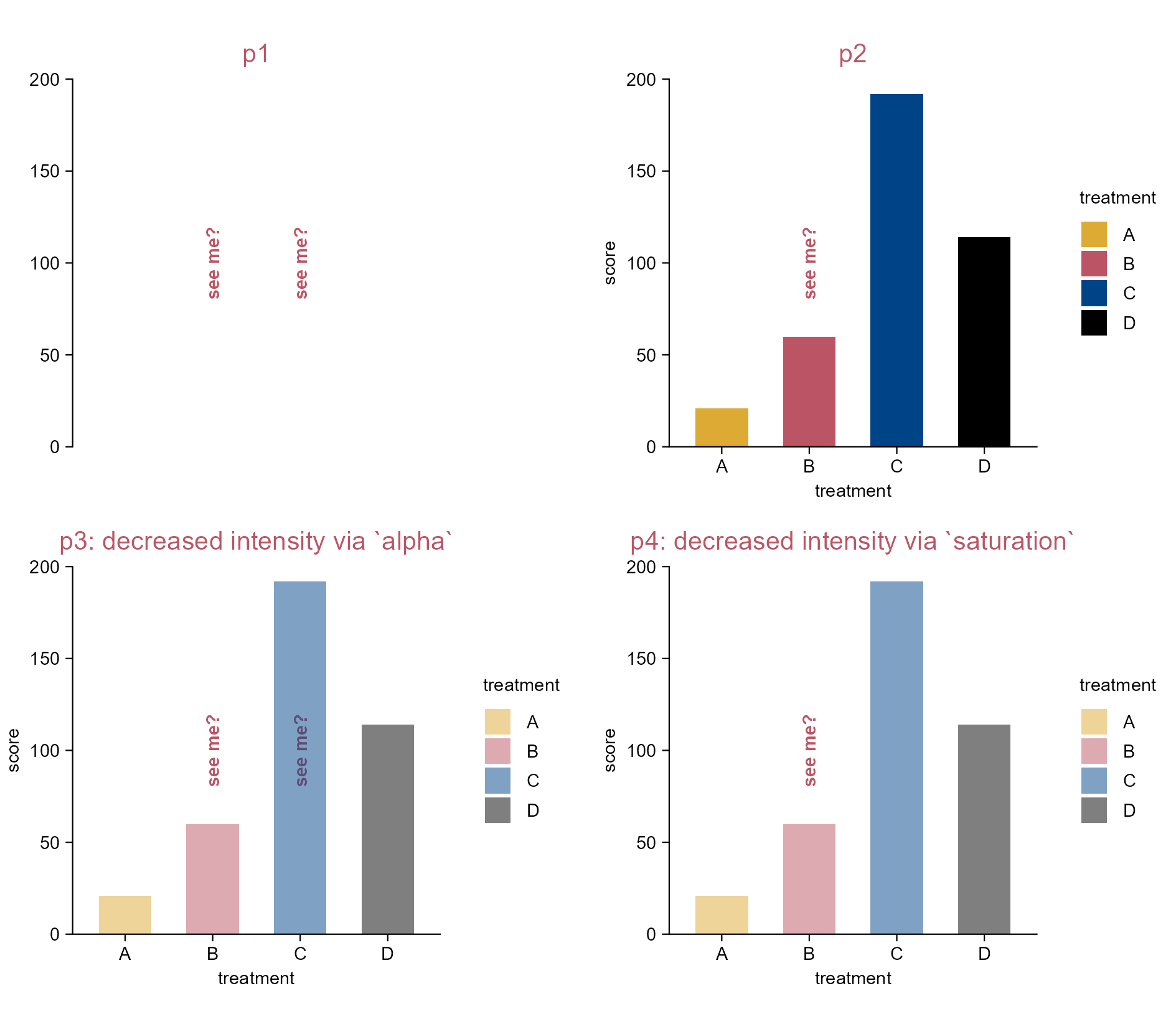
Color alpha vs. saturation.

3.4 Plot size (e.g. bar plot)

library(tidyplots)

# View top 10 rows of the columns used
study |> 
  dplyr::select(group, score) |> 
  dplyr::slice_head(n = 10)
# A tibble: 10 × 2
   group   score
   <chr>   <dbl>
 1 placebo     2
 2 placebo     4
 3 placebo     5
 4 placebo     4
 5 placebo     6
 6 placebo     9
 7 placebo     8
 8 placebo    12
 9 placebo    15
10 placebo    16
# Plot
p1 <- study |> 
  tidyplot(
    x = group, 
    y = score, 
    color = group) |> 
  add_median_bar() |> 
  add_title(title = "p1")

p2 <- p1 |> 
  adjust_title(title = "p2: width reduced") |> 
  adjust_size(width = 20)

p3 <- p1 |> 
  adjust_title(title = "p3: height reduced") |> 
  adjust_size(height = 20)

p4 <- p1 |> 
  adjust_title(title = "p4: width and height enlarged") |> 
  adjust_size(
    width = 8, 
    height = 8, 
    unit = "cm")
Note

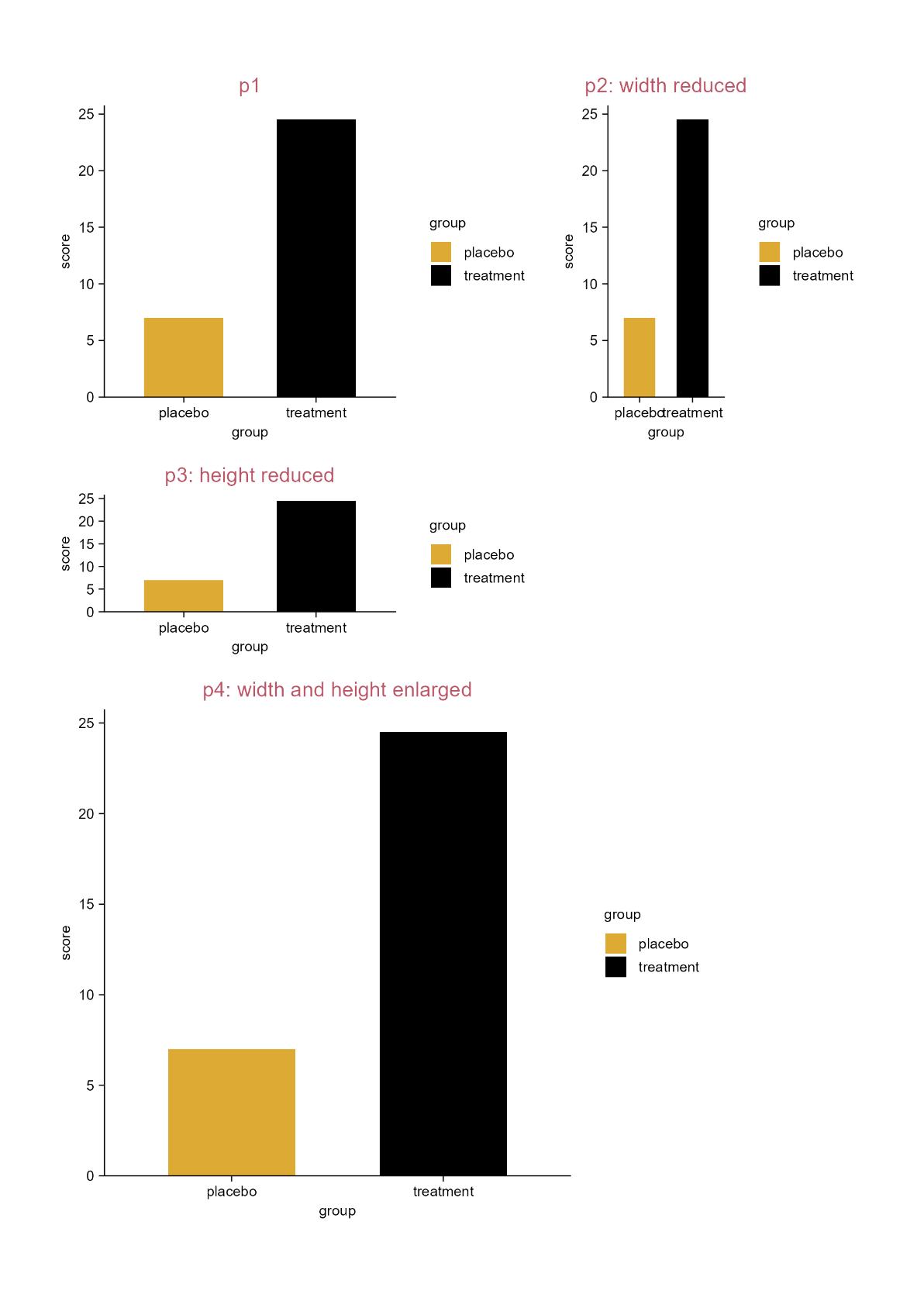
All plots in tidyplots have absolute dimensions.

By default this is 50 mm in width and 50 mm in height.

If you want the plot to fill all available space (ggplot2 default), do adjust_size(width = NA, height = NA).

Absolute dimention is to be the only reliable way to maintain consistent proportions of plot area size, font size, line width, etc.

Adjust plot size.

3.5 Remove plot elements (e.g. bar plot)

library(tidyplots)

# View top 10 rows of the columns used
study |> 
  dplyr::select(treatment, score) |> 
  dplyr::slice_head(n = 10)
# A tibble: 10 × 2
   treatment score
   <chr>     <dbl>
 1 A             2
 2 A             4
 3 A             5
 4 A             4
 5 A             6
 6 B             9
 7 B             8
 8 B            12
 9 B            15
10 B            16
# Plot
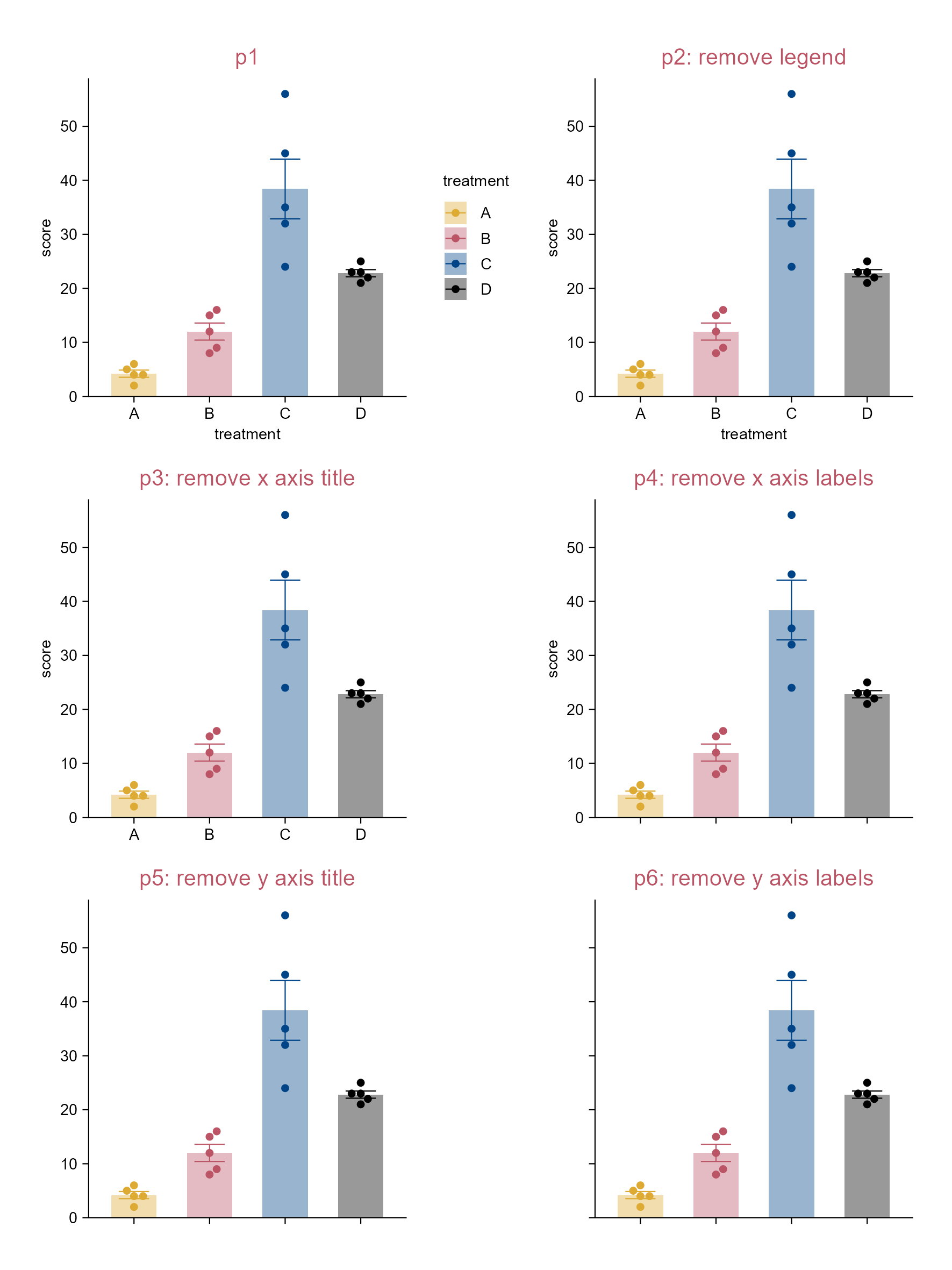
p1 <- study |> 
  tidyplot(
    x = treatment, 
    y = score, 
    color = treatment) |> 
  add_mean_bar(alpha = 0.4) |> 
  add_sem_errorbar() |> 
  add_data_points_beeswarm() |> 
  add_title(title = "p1")

p2 <- p1 |> 
  adjust_title(title = "p2: remove legend") |> 
  remove_legend()

p3 <- p2 |> 
  adjust_title(title = "p3: remove x axis title") |> 
  remove_x_axis_title()

p4 <- p3 |> 
  adjust_title(title = "p4: remove x axis labels") |> 
  remove_x_axis_labels()

p5 <- p4 |> 
  adjust_title(title = "p5: remove y axis title") |> 
  remove_y_axis_title()

p6 <- p5 |> 
  adjust_title(title = "p6: remove y axis labels") |> 
  remove_y_axis_labels()

Remove plot elements.

3.6 Highlight a subset of dataset (i.e. dot plot)

library(tidyplots)

# View top 10 rows of the columns used
animals |> 
  dplyr::select(weight, size, animal) |> 
  dplyr::slice_head(n = 10)
# A tibble: 10 × 3
      weight  size animal           
       <dbl> <dbl> <chr>            
 1 0.00012     1.5 Honeybee         
 2 0.00045    10   Monarch Butterfly
 3 0.0002     10   Dragonfly        
 4 0.00002     2.5 Firefly          
 5 0.003      17   Praying Mantis   
 6 0.0000025   1   Mosquito         
 7 0.000005    4   Ant              
 8 0.00001     0.8 Ladybug          
 9 0.0002      7.5 Grasshopper      
10 0.0004      9   Butterfly        
# Plot
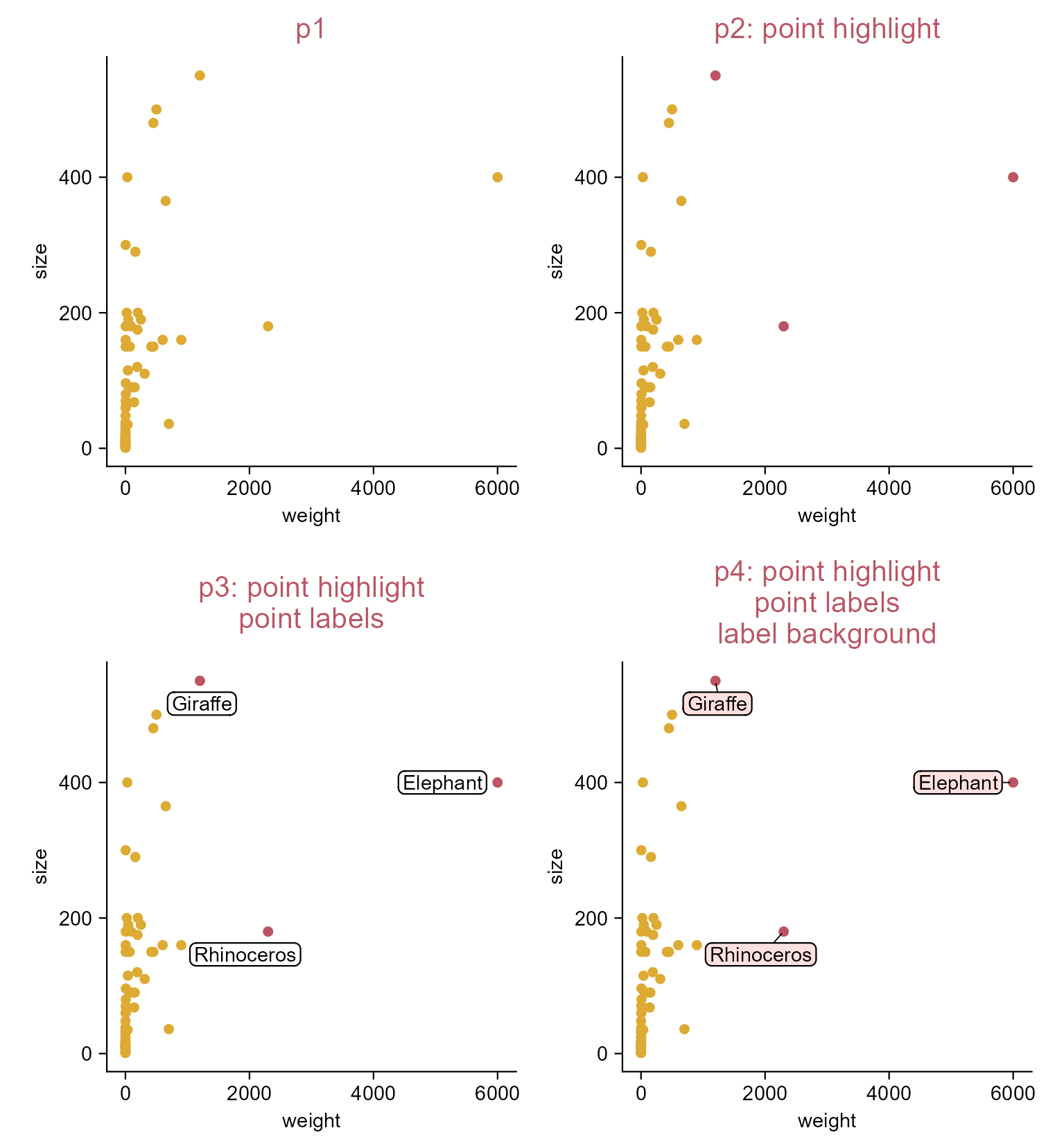
p1 <- animals |> 
  tidyplot(x = weight, y = size) |> 
  add_data_points(color = "#ddaa33") |> 
  add_title(title = "p1")

p2 <- p1 |> 
  add_data_points(
    data = max_rows(weight, n = 3),
    color = "#bb5566") |> 
  adjust_title(title = "p2: point highlight")

p3 <- p2 |> 
  add_data_labels_repel(data = max_rows(weight, n = 3), 
    label = animal, color = "black") |> 
  adjust_title(title = paste(
    "p3: point highlight", 
    "point labels", 
    sep = "\n"))

p4 <- p2 |> 
  add_data_labels_repel(data = max_rows(weight, n = 3), 
    background = TRUE, background_color = "#ffcccc", 
    min.segment.length = 0, 
    label = animal, 
    color = "black") |> 
  add_title(title = paste(
    "p4: point highlight", 
    "point labels", 
    "label background", 
    sep = "\n"))

Highlight a subset of dataset.

3.7 Point shape and size (e.g. dot plot)

library(tidyplots)

# View top 10 rows of the columns used
animals |> 
  dplyr::select(weight, size, animal) |> 
  dplyr::slice_head(n = 10)
# A tibble: 10 × 3
      weight  size animal           
       <dbl> <dbl> <chr>            
 1 0.00012     1.5 Honeybee         
 2 0.00045    10   Monarch Butterfly
 3 0.0002     10   Dragonfly        
 4 0.00002     2.5 Firefly          
 5 0.003      17   Praying Mantis   
 6 0.0000025   1   Mosquito         
 7 0.000005    4   Ant              
 8 0.00001     0.8 Ladybug          
 9 0.0002      7.5 Grasshopper      
10 0.0004      9   Butterfly        
# Plot
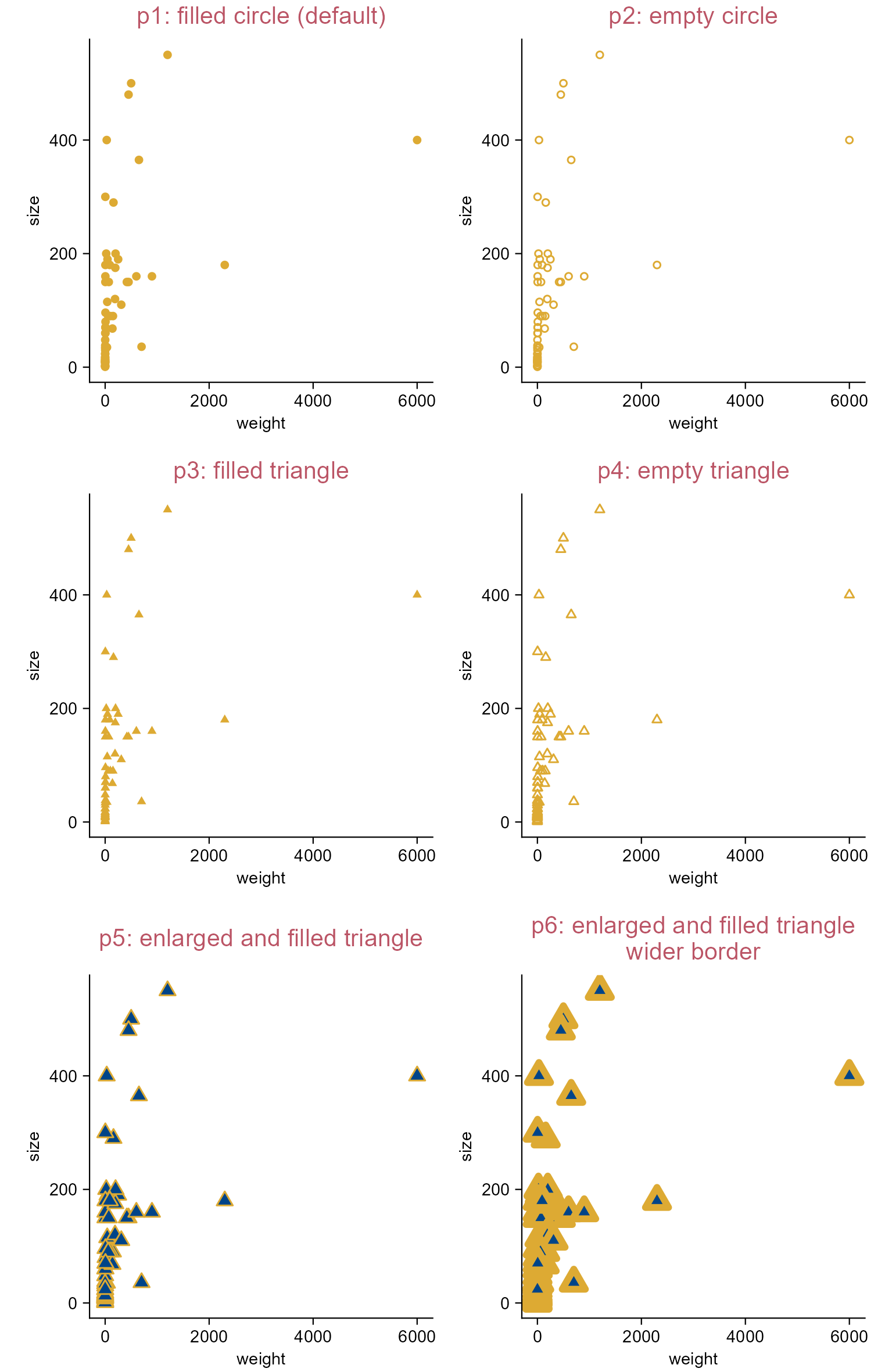
p0 <- animals |> 
  tidyplot(x = weight, y = size)

p1 <- p0 |> 
  add_title(title = "p1: filled circle (default)") |> 
  add_data_points(color = "#ddaa33", shape = 19)

p2 <- p0 |> 
  add_title(title = "p2: empty circle") |> 
  add_data_points(color = "#ddaa33", shape = 1)

p3 <- p0 |> 
  add_title(title = "p3: filled triangle") |> 
  add_data_points(color = "#ddaa33", shape = 17)

p4 <- p0 |> 
  add_title(title = "p4: empty triangle") |> 
  add_data_points(color = "#ddaa33", shape = 2)

p5 <- p0 |> 
  add_title(title = "p5: enlarged and filled triangle") |> 
  add_data_points(
    color = "#ddaa33", fill = "#004488", shape = 24, size = 2)

p6 <- p0 |> 
  add_title(title = paste(
    "p6: enlarged and filled triangle", "wider border", sep = "\n")) |> 
  add_data_points(
    color = "#ddaa33", fill = "#004488", shape = 24, size = 2, 
    stroke = 2)
Note

See Section 6.1 and Section 6.2 for details about shape.

Change point shape and size.

3.8 Reference lines/rectangle (e.g. dot plot)

library(tidyplots)

# View top 10 rows of the columns used
animals |> 
  dplyr::select(weight, speed) |> 
  dplyr::slice_head(n = 10)
# A tibble: 10 × 2
      weight   speed
       <dbl>   <dbl>
 1 0.00012   0.72   
 2 0.00045   0.432  
 3 0.0002    2.09   
 4 0.00002   0.0432 
 5 0.003     0.144  
 6 0.0000025 0.054  
 7 0.000005  0.00216
 8 0.00001   0.054  
 9 0.0002    0.576  
10 0.0004    0.432  
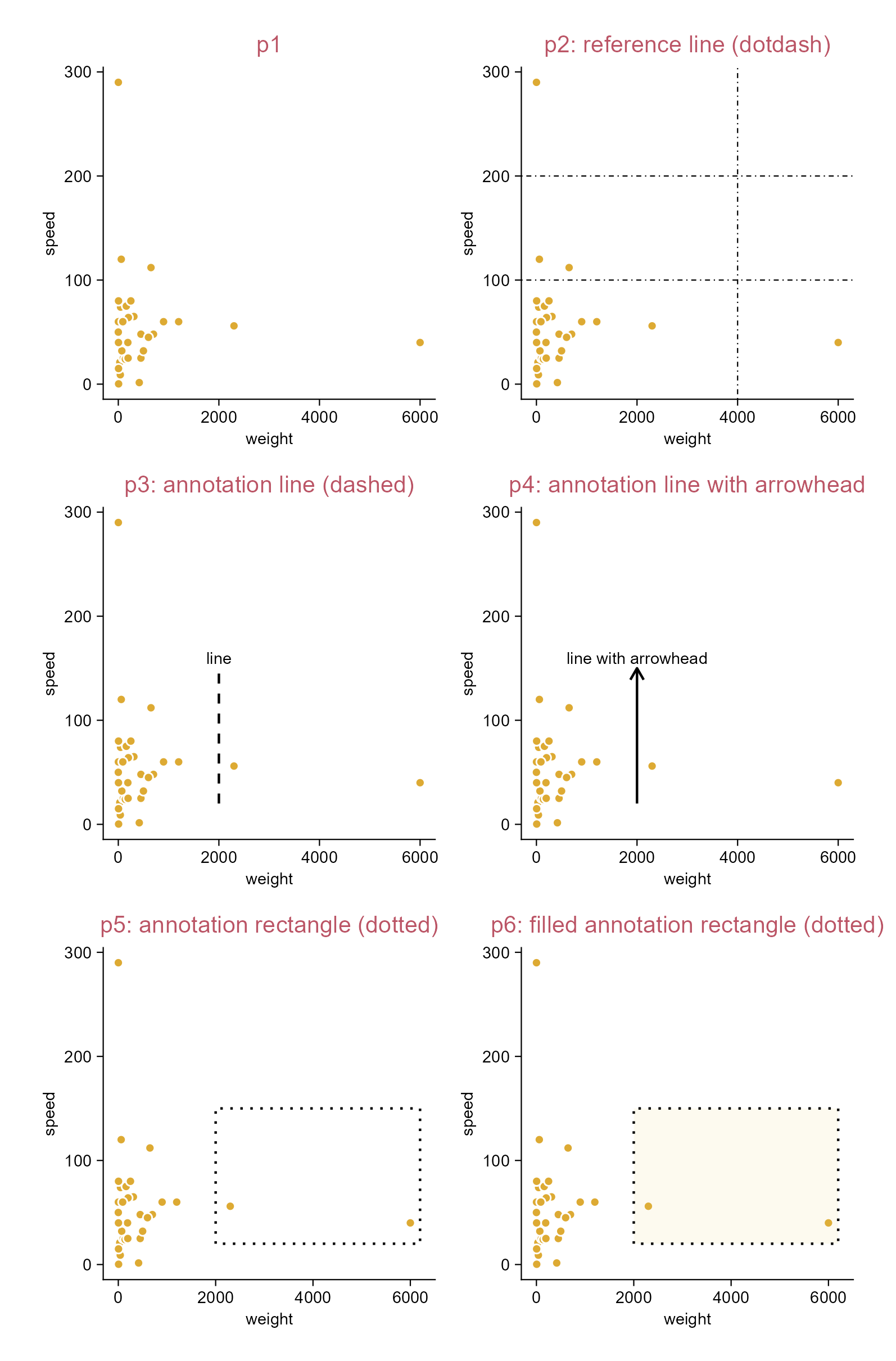
p1 <- animals |> 
  tidyplot(x = weight, y = speed) |> 
  add_data_points(white_border = TRUE) |>
  add_title(title = "p1") 

p2 <- p1 |> 
  adjust_title(title = "p2: reference line (dotdash)") |> 
  add_reference_lines(
    x = 4000, y = c(100, 200), linetype = "dotdash")

p3 <- p1 |> 
  adjust_title(title = "p3: annotation line (dashed)") |> 
  add_annotation_line(
    x = 2000, xend = 2000, y = 20, yend = 150, linetype = "dashed") |> 
  add_annotation_text(text = "line", x = 2000, y = 160)

p4 <- p1 |> 
  adjust_title(title = "p4: annotation line with arrowhead") |> 
  add_annotation_line(
    x = 2000, xend = 2000, y = 20, yend = 150,
    arrow = grid::arrow(length = grid::unit(2, "mm"))) |> 
  add_annotation_text(text = "line with arrowhead", x = 2000, y = 160)

p5 <- p1 |> 
  adjust_title(title = "p5: annotation rectangle (dotted)") |> 
  add_annotation_rectangle(
    xmin = 2000, xmax = 6200, ymin = 20, ymax = 150, 
    linetype = "dotted", color = "#000000", fill = NA)

p6 <- p1 |> 
  adjust_title(title = "p6: filled annotation rectangle (dotted)") |> 
  add_annotation_rectangle(
    xmin = 2000, xmax = 6200, ymin = 20, ymax = 150, 
    linetype = "dotted", color = "#000000", fill = "#eecc66")

Add reference lines or rectangle.

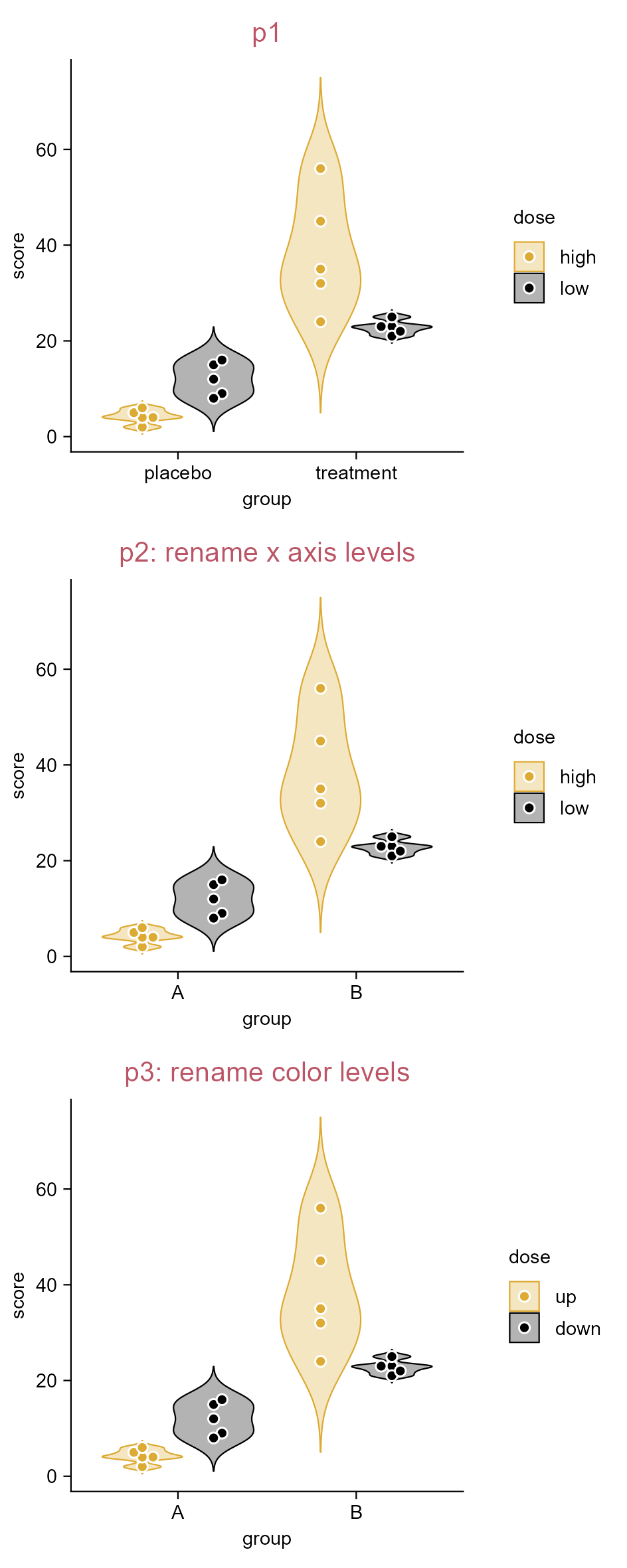
3.9 Rename axis levels (e.g. violin plot)

library(tidyplots)

# View the top 10 rows of the columns used
study |> 
  dplyr::select(group, score, dose) |> 
  dplyr::slice_head(n = 10)
# A tibble: 10 × 3
   group   score dose 
   <chr>   <dbl> <chr>
 1 placebo     2 high 
 2 placebo     4 high 
 3 placebo     5 high 
 4 placebo     4 high 
 5 placebo     6 high 
 6 placebo     9 low  
 7 placebo     8 low  
 8 placebo    12 low  
 9 placebo    15 low  
10 placebo    16 low  
# Plot
p1 <- study |> 
  tidyplot(
    x = group, 
    y = score, 
    color = dose) |> 
  add_violin(trim = FALSE) |> 
  add_data_points_beeswarm(white_border = TRUE) |> 
  add_title(title = "p1")

p2 <- p1 |> 
  adjust_title(
    title = "p2: rename x axis levels") |> 
  rename_x_axis_levels(
    new_names = c(
      "placebo" = "A", 
      "treatment" = "B"))

p3 <- p2 |> 
  adjust_title(
    title = "p3: rename color levels") |> 
  rename_color_levels(
    new_names = c(
      "high" = "up", 
      "low" = "down"))

Rename axis levels.

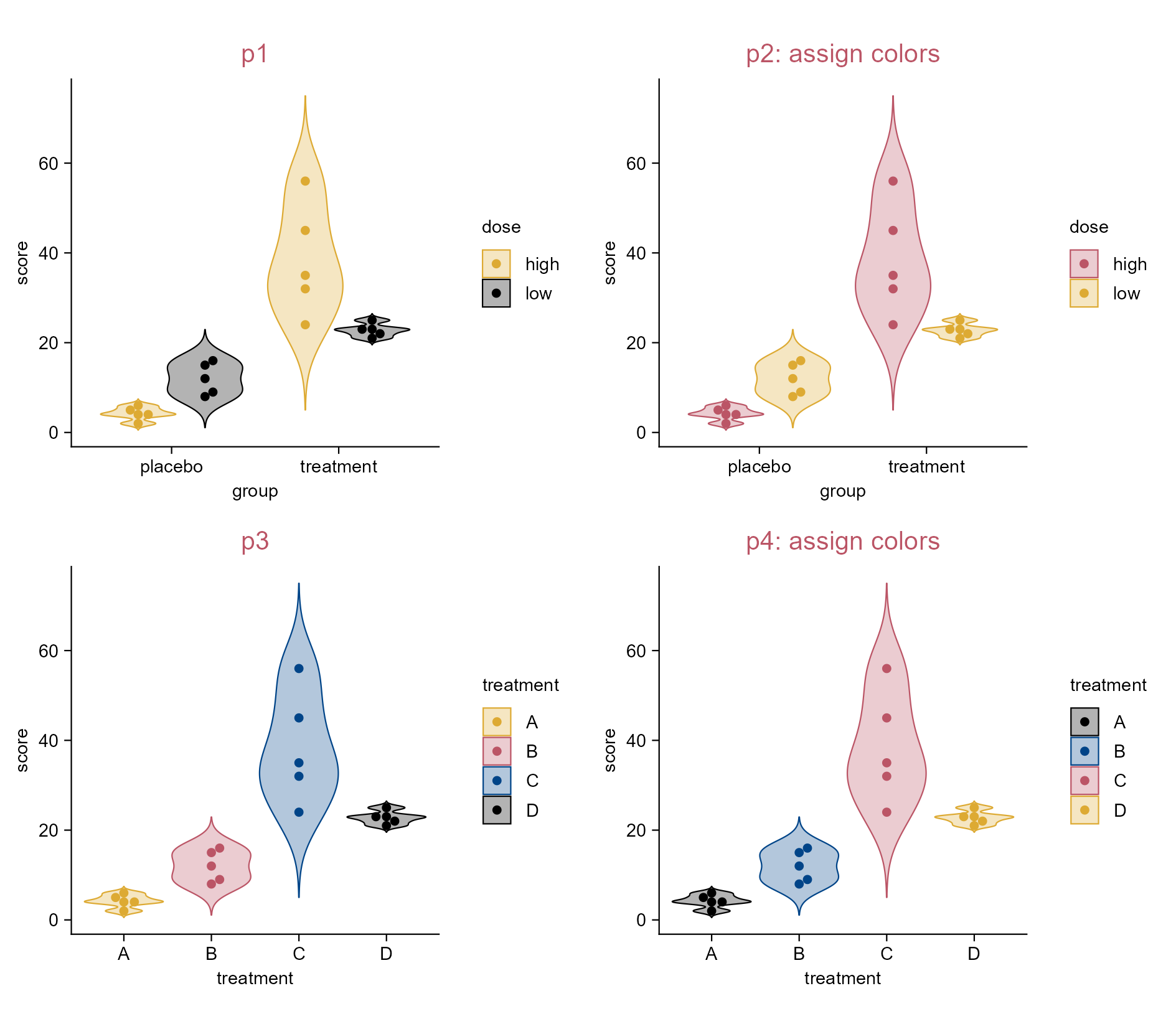
3.10 Assign colors (e.g. violin plot)

library(tidyplots)

# View top 10 rows of the columns used
study |> 
  dplyr::select(group, score, dose) |> 
  dplyr::slice_head(n = 10)
# A tibble: 10 × 3
   group   score dose 
   <chr>   <dbl> <chr>
 1 placebo     2 high 
 2 placebo     4 high 
 3 placebo     5 high 
 4 placebo     4 high 
 5 placebo     6 high 
 6 placebo     9 low  
 7 placebo     8 low  
 8 placebo    12 low  
 9 placebo    15 low  
10 placebo    16 low  
p1 <- study |> 
  tidyplot(
    x = group, 
    y = score, 
    color = dose) |> 
  add_violin(trim = FALSE) |> 
  add_data_points_beeswarm() |> 
  add_title(title = "p1")  

p2 <- p1 |> 
  adjust_title(title = "p2: assign colors") |> 
  adjust_colors(
    new_colors = c(
      "high" = "#bb5566", 
      "low" = "#ddaa33"))

p3 <- study |> 
  tidyplot(
    x = treatment, 
    y = score, 
    color = treatment) |> 
  add_violin(trim = FALSE) |> 
  add_data_points_beeswarm() |> 
  add_title(title = "p3")

p4 <- p3 |> 
  adjust_title(title = "p4: assign colors") |> 
  adjust_colors(
    new_colors = c(
      "A" = "#000000", 
      "B" = "#004488",
      "C" = "#bb5566", 
      "D" = "#ddaa33"))

Assign colors.

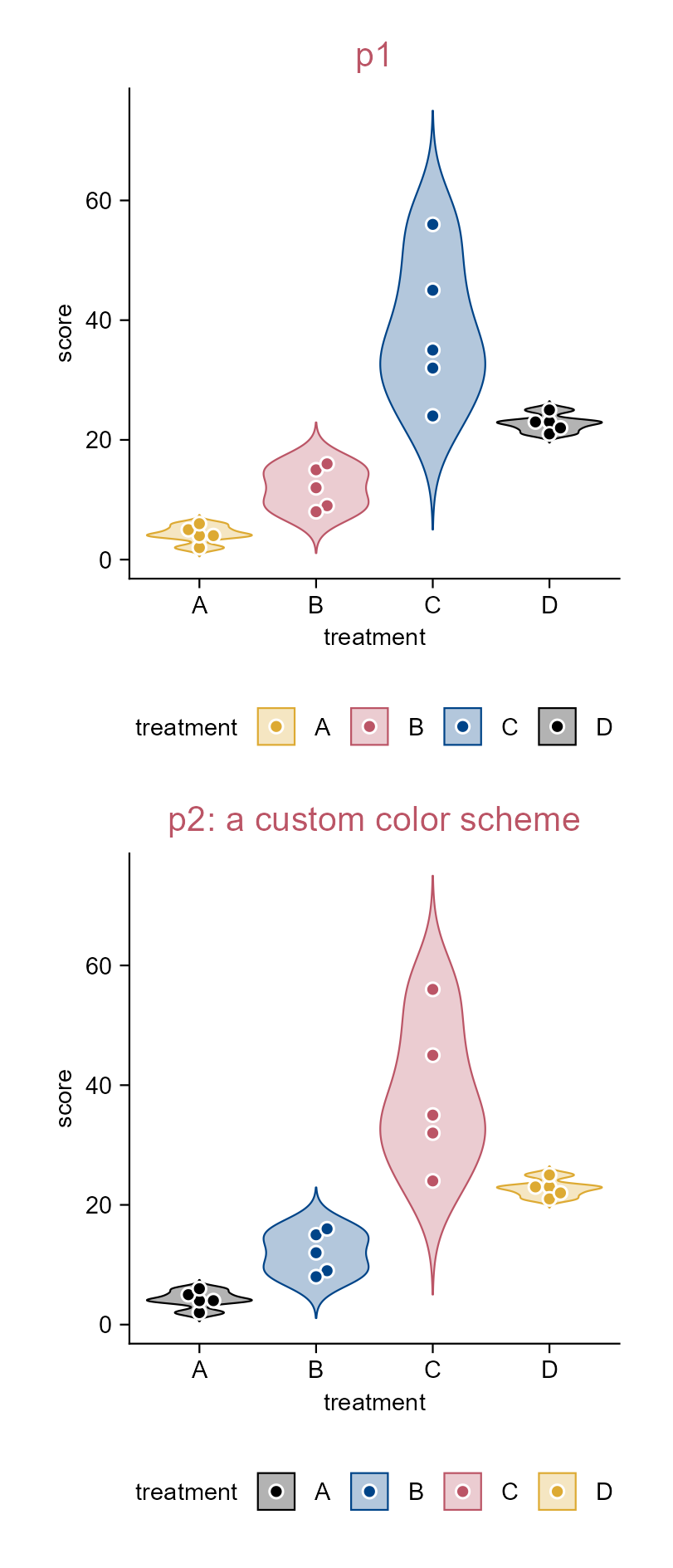
3.11 Define a custom color scheme (e.g. violin plot)

library(tidyplots)

# Define a custom color scheme
high_contrast_qualitative_colour <- new_color_scheme(
  c("#000000", 
    "#004488", 
    "#bb5566", 
    "#ddaa33"), 
  name = "high_contrast_qualitative_colour")

# View top 10 rows of the columns used
study |> 
  dplyr::select(treatment, score) |> 
  dplyr::slice_head(n = 10)
# A tibble: 10 × 2
   treatment score
   <chr>     <dbl>
 1 A             2
 2 A             4
 3 A             5
 4 A             4
 5 A             6
 6 B             9
 7 B             8
 8 B            12
 9 B            15
10 B            16
# Plot
p1 <- study |> 
  tidyplot(
    x = treatment, 
    y = score, 
    color = treatment) |> 
  add_violin(trim = FALSE) |> 
  add_data_points_beeswarm(white_border = TRUE) |> 
  adjust_legend_position(position = "bottom") |> 
  add_title(title = "p1")

p2 <- p1 |> 
  adjust_title(title = "p2: a custom color scheme") |> 
  adjust_colors(new_colors = high_contrast_qualitative_colour)

Define a custom color scheme.

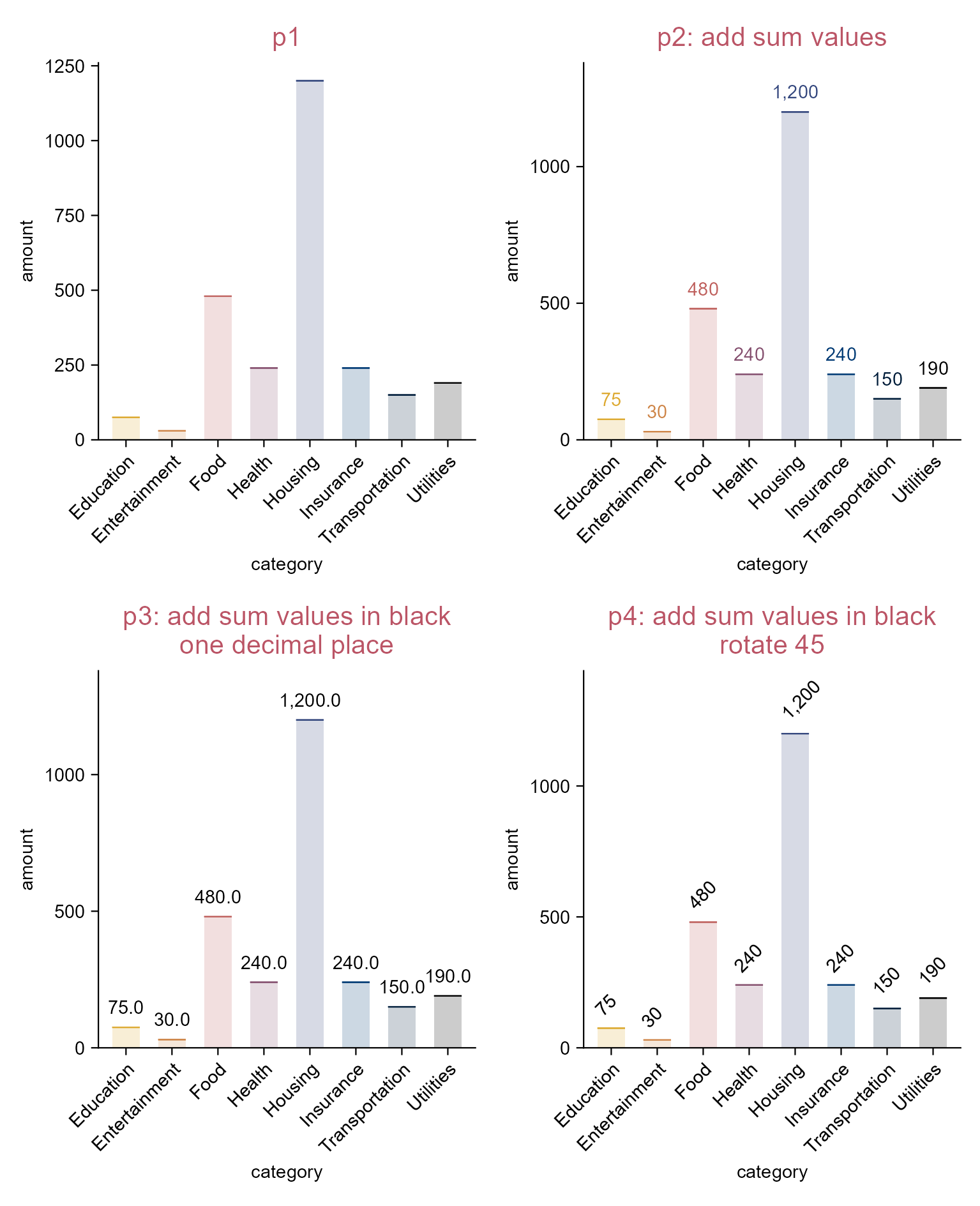
3.12 Add sum values (e.g. bar plot)

library(tidyplots)

# View top 10 rows of the columns used
spendings |> 
  dplyr::select(category, amount) |> 
  dplyr::slice_head(n = 10)
# A tibble: 10 × 2
   category       amount
   <chr>           <dbl>
 1 Food              100
 2 Transportation     40
 3 Housing          1200
 4 Utilities          80
 5 Education          75
 6 Insurance         200
 7 Food               60
 8 Utilities          50
 9 Food               90
10 Transportation     40
# Plot
p1 <- spendings |> 
  tidyplot(
    x = category, 
    y = amount, 
    color = category) |> 
  add_sum_bar(alpha = 0.2) |> 
  add_sum_dash() |> 
  add_title(title = "p1") |> 
  adjust_x_axis(rotate_labels = TRUE) |> 
  remove_legend()

p2 <- p1 |> 
  adjust_title(title = "p2: add sum values") |> 
  add_sum_value(accuracy = 1)

p3 <- p1 |> 
  adjust_title(title = paste(
    "p3: add sum values in black",
    "one decimal place",
    sep = "\n")) |> 
  add_sum_value(accuracy = 0.1, color = "black")

p4 <- p1 |> 
  adjust_title(title = paste(
    "p4: add sum values in black",
    "rotate 45",
    sep = "\n")) |> 
  add_sum_value(
    accuracy = 1, 
    color = "black",
    angle = 45, 
    hjust = -0.1) |> 
  adjust_padding(top = 0.2)

Add sum values.

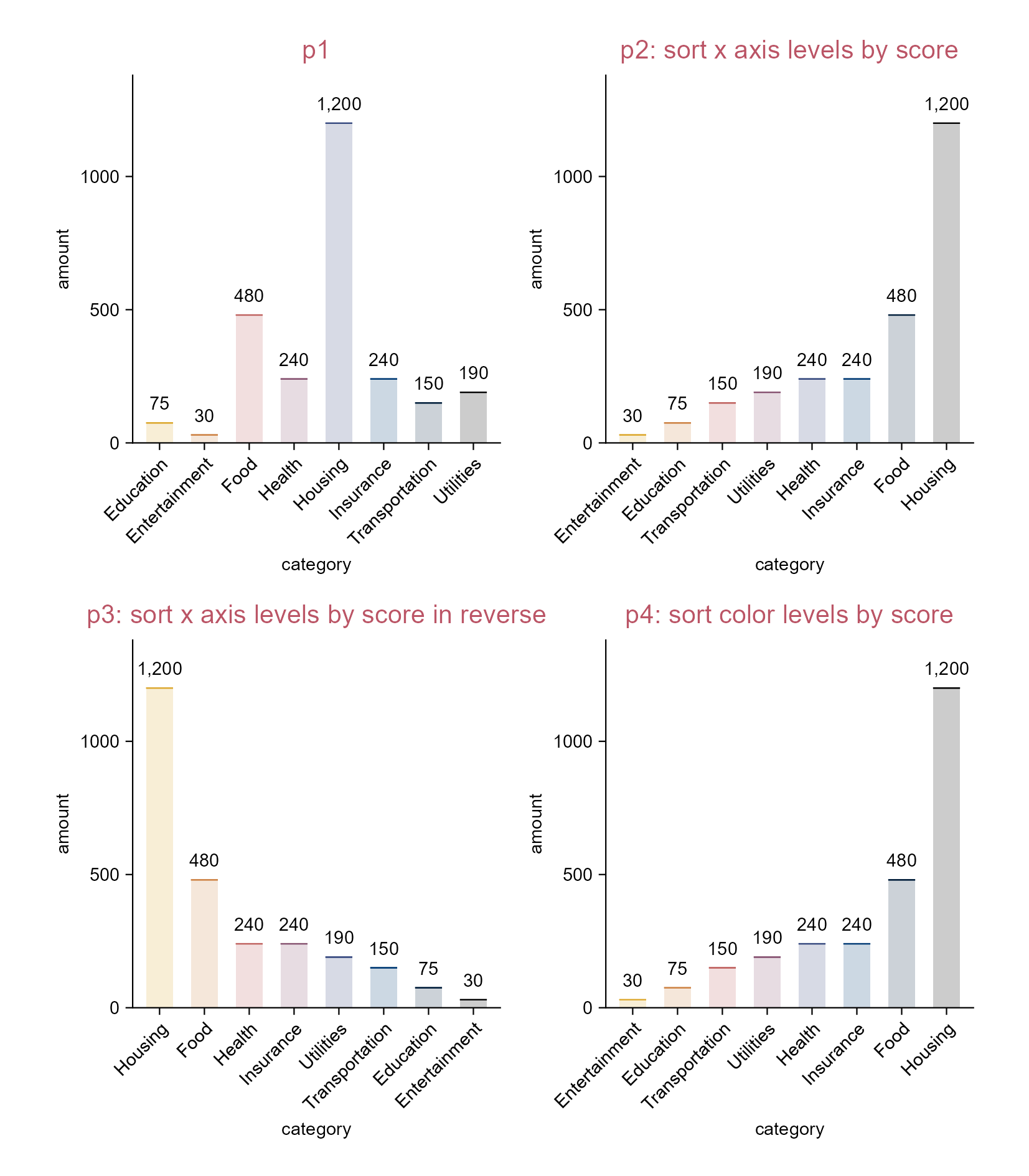
3.13 Sort axis levels (e.g. bar plot)

library(tidyplots)

# View the top 10 rows of the columns used
spendings |> 
  dplyr::select(category, amount) |> 
  dplyr::slice_head(n = 10)
# A tibble: 10 × 2
   category       amount
   <chr>           <dbl>
 1 Food              100
 2 Transportation     40
 3 Housing          1200
 4 Utilities          80
 5 Education          75
 6 Insurance         200
 7 Food               60
 8 Utilities          50
 9 Food               90
10 Transportation     40
# Plot
p1 <- spendings |> 
  tidyplot(
    x = category, 
    y = amount, 
    color = category) |> 
  add_sum_bar(alpha = 0.2) |> 
  add_sum_dash() |> 
  add_sum_value(
    accuracy = 1, 
    color = "black") |> 
  adjust_x_axis(rotate_labels = TRUE) |> 
  add_title(title = "p1") |> 
  remove_legend()

p2 <- p1 |> 
  adjust_title(title = "p2: sort x axis levels by score") |> 
  sort_x_axis_levels()

p3 <- p1 |> 
  adjust_title(title = "p3: sort x axis levels by score in reverse") |> 
  sort_x_axis_levels(.reverse = TRUE)

p4 <- p1 |> 
  adjust_title(title = "p4: sort color levels by score") |> 
  sort_color_levels()

Sort axis levels.

3.14 Reorder axis levels (e.g. violin plot)

library(tidyplots)

# View top 10 rows of the columns used
study |> 
  dplyr::select(treatment, score) |> 
  dplyr::slice_head(n = 10)
# A tibble: 10 × 2
   treatment score
   <chr>     <dbl>
 1 A             2
 2 A             4
 3 A             5
 4 A             4
 5 A             6
 6 B             9
 7 B             8
 8 B            12
 9 B            15
10 B            16
# Plot
p1 <- study |> 
  tidyplot(
    x = treatment, 
    y = score, 
    color = treatment) |> 
  add_violin(trim = FALSE) |> 
  add_data_points_beeswarm(white_border = TRUE) |> 
  add_title(title = "p1")

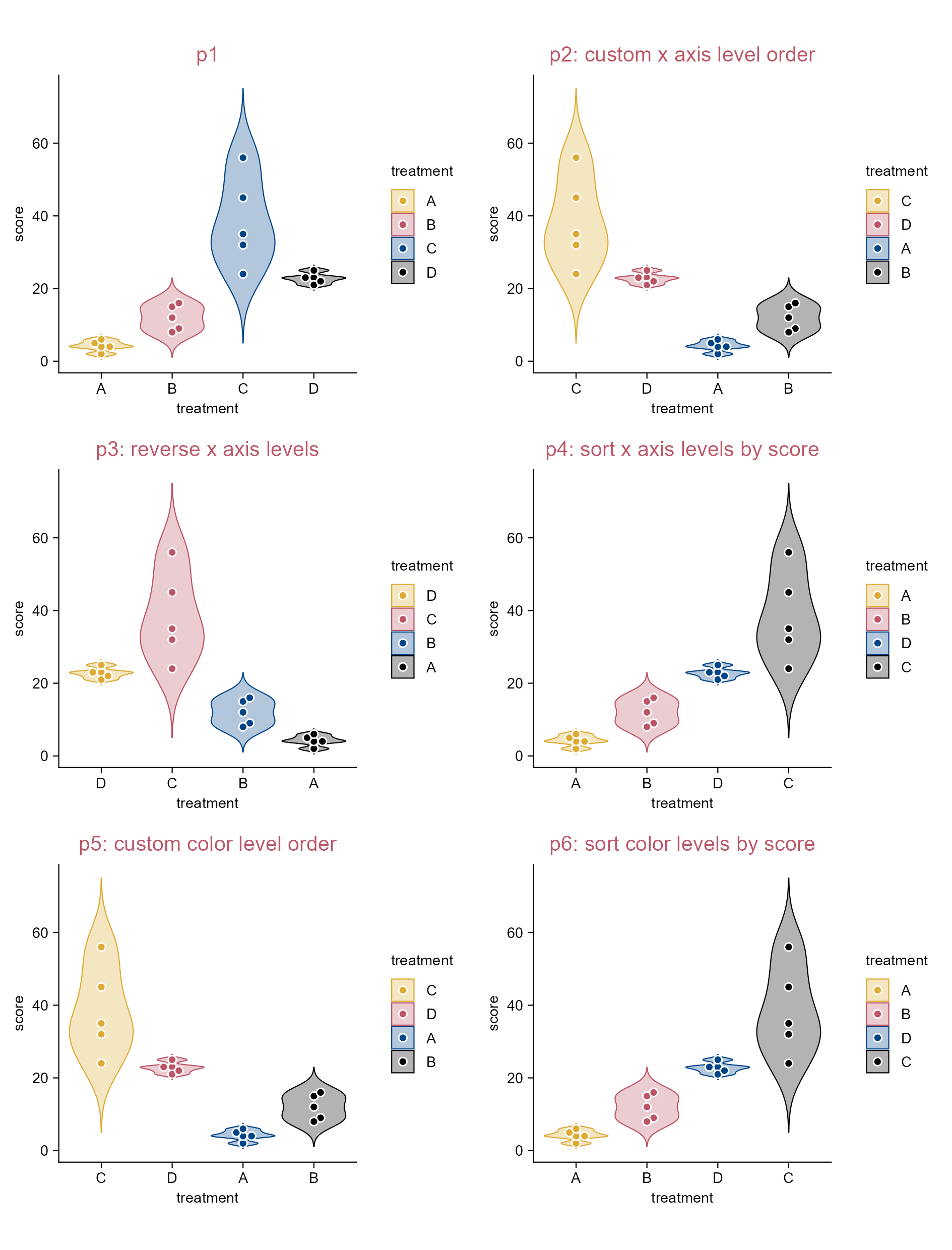
p2 <- p1 |> 
  adjust_title(title = "p2: custom x axis level order") |> 
  reorder_x_axis_levels("C", "D", "A", "B")

p3 <- p1 |> 
  adjust_title(title = "p3: reverse x axis levels") |> 
  reverse_x_axis_levels()

p4 <- p1 |>
  adjust_title(title = "p4: sort x axis levels by score") |> 
  sort_x_axis_levels()

p5 <- p1 |>
  adjust_title(title = "p5: custom color level order") |> 
  reorder_color_levels("C", "D")

p6 <- p1 |> 
  adjust_title(title = "p6: sort color levels by score") |> 
  sort_color_levels()

Reorder axis levels.

3.15 Guide attention (e.g. bar plot)

library(tidyplots)

# View top 10 rows of the columns used
spendings |> 
  dplyr::select(category, amount) |> 
  dplyr::slice_head(n = 10)
# A tibble: 10 × 2
   category       amount
   <chr>           <dbl>
 1 Food              100
 2 Transportation     40
 3 Housing          1200
 4 Utilities          80
 5 Education          75
 6 Insurance         200
 7 Food               60
 8 Utilities          50
 9 Food               90
10 Transportation     40
# Plot
p1 <- spendings |> 
  tidyplot(
    x = category, 
    y = amount, 
    color = category) |> 
  add_sum_bar() |> 
  add_title(title = "p1") |> 
  adjust_x_axis(rotate_labels = TRUE)  
  
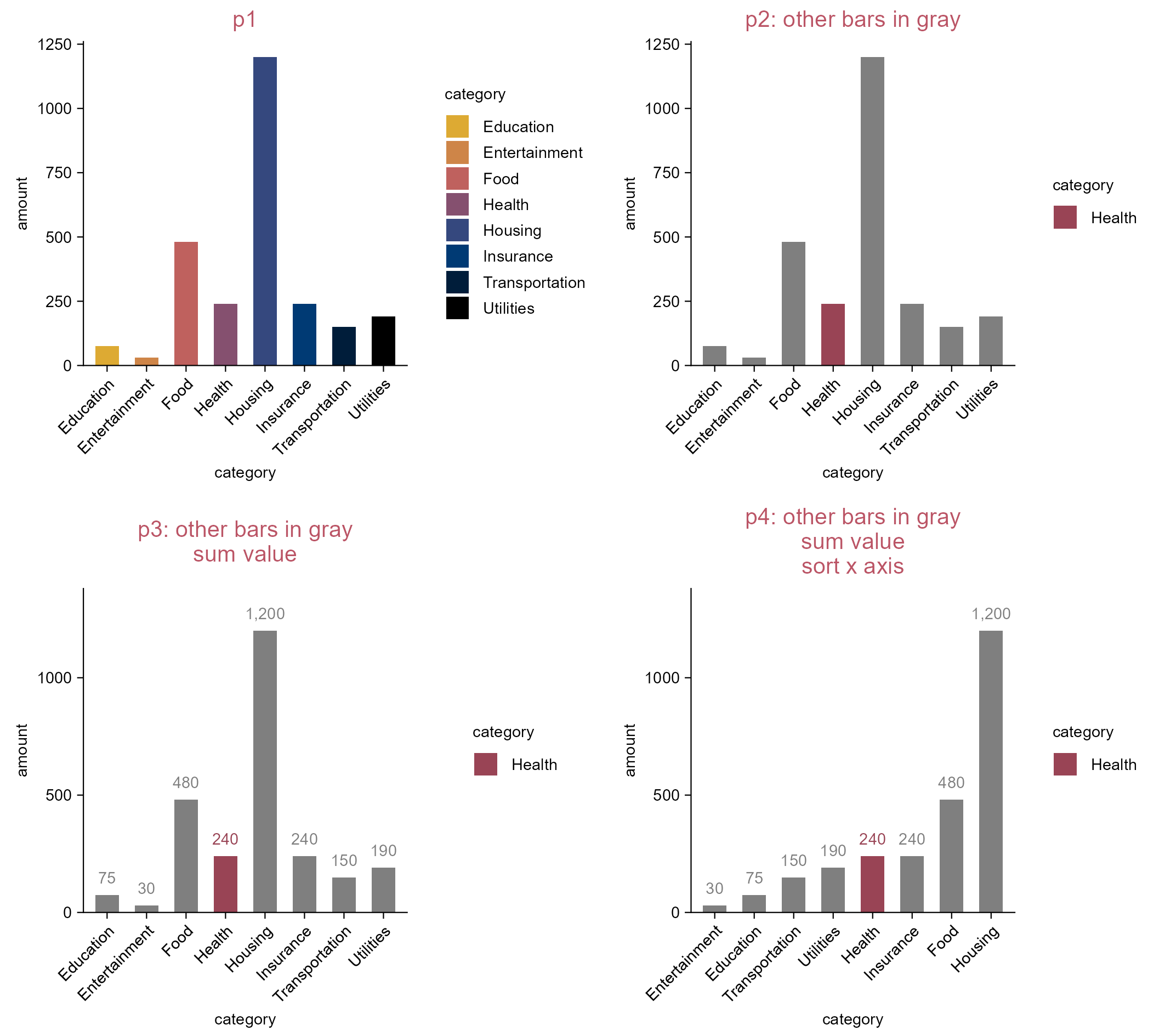
p2 <- p1 |> 
  adjust_title(title = "p2: other bars in gray") |> 
  adjust_colors(
    new_colors = c(
      "Health" = "#994455", 
      na.value = "#dddddd"))

p3 <- p1 |> 
  adjust_title(title = paste(
    "p3: other bars in gray",
    "sum value",
    sep = "\n")) |> 
  add_sum_value(accuracy = 1) |> 
  adjust_colors(
    new_colors = c(
      "Health" = "#994455", 
      na.value = "#dddddd"))

p4 <- p3 |> 
  adjust_title(title = paste(
    "p4: other bars in gray",
    "sum value",
    "sort x axis",
    sep = "\n")) |> 
  sort_x_axis_levels()

Guide attention.

3.16 Horizontal bars (e.g. bar plot)

library(tidyplots)

# View top 10 rows of the columns used
spendings |> 
  dplyr::select(amount, category) |> 
  dplyr::slice_head(n = 10)
# A tibble: 10 × 2
   amount category      
    <dbl> <chr>         
 1    100 Food          
 2     40 Transportation
 3   1200 Housing       
 4     80 Utilities     
 5     75 Education     
 6    200 Insurance     
 7     60 Food          
 8     50 Utilities     
 9     90 Food          
10     40 Transportation
# Plot
p1 <- spendings |> 
  tidyplot(x = category, y = amount, color = category) |> 
  add_sum_bar(alpha = 0.2) |> 
  add_sum_dash() |> 
  add_sum_value(accuracy = 1, color = "black") |>
  add_title(title = "p1") |> 
  sort_x_axis_levels() |> 
  adjust_x_axis(rotate_labels = TRUE) |> 
  adjust_colors(new_colors = c(
    "#eecc66", "#ee99aa", "#6699cc", 
    "#997700", "#994455", "#004488", "#000000")) |> 
  remove_legend() |> 
  adjust_padding(right = 0.2)

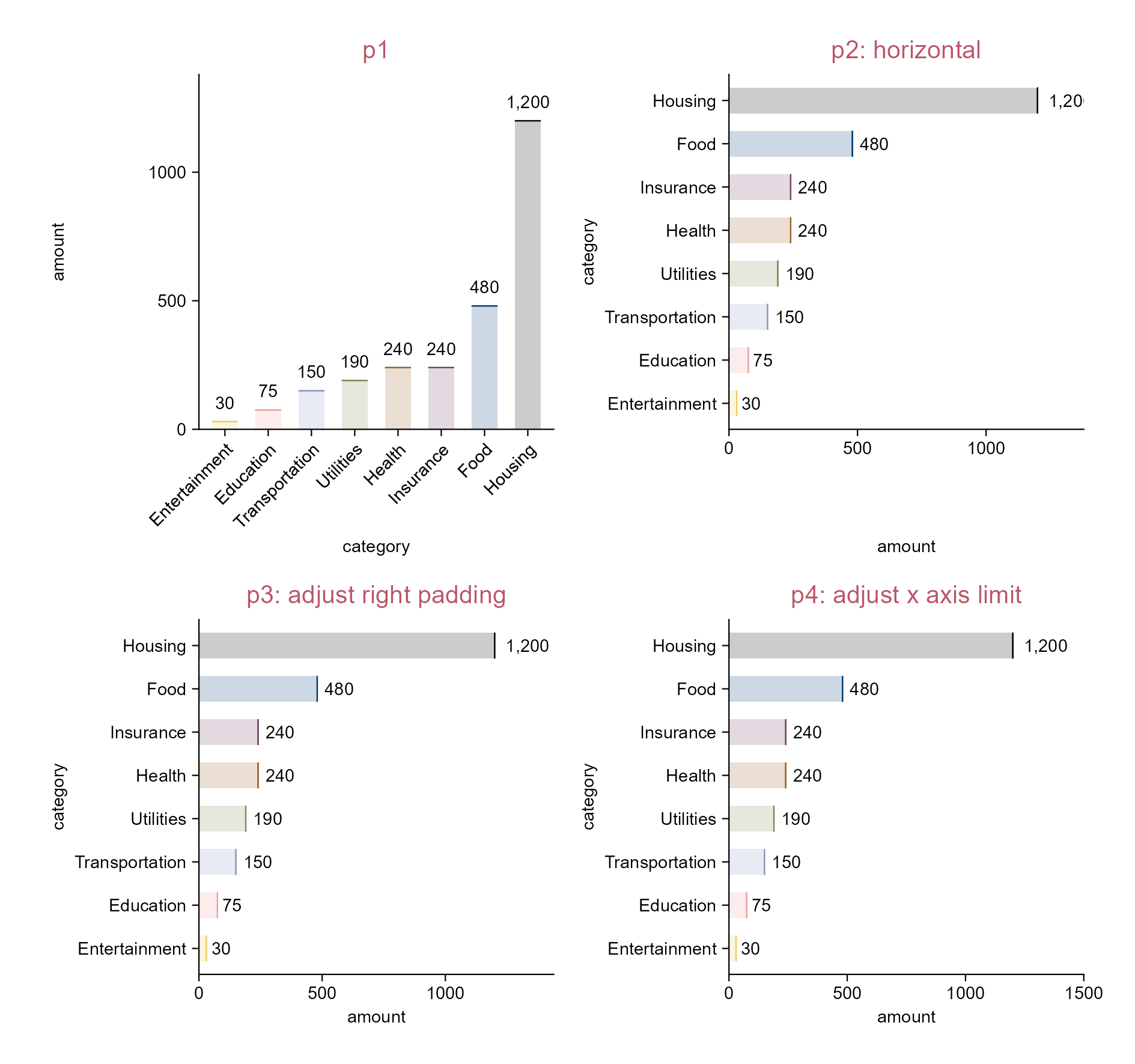
p2 <- spendings |> 
  tidyplot(x = amount, y = category, color = category) |> 
  add_sum_bar(alpha = 0.2) |> 
  add_sum_dash() |> 
  add_sum_value(accuracy = 1, color = "black") |> 
  adjust_title(title = "p2: horizontal") |> 
  sort_y_axis_levels() |> 
  adjust_colors(new_colors = c(
    "#eecc66", "#ee99aa", "#6699cc", 
    "#997700", "#994455", "#004488", "#000000")) |> 
  remove_legend()

p3 <- p2 |> 
  adjust_title(title = "p3: adjust right padding") |> 
  adjust_padding(right = 0.2)

p4 <- p2 |> 
  adjust_title(title = "p4: adjust x axis limit") |> 
  adjust_x_axis(limits = c(0, 1500))

Horizontal bars.
Tip

The sum value of Housing in p2 is clipped (the actual value should be 1,200).

One way to solve this is via p3 (i.e. piping with adjust_padding(right = 0.2)).

The second way is via p4 (i.e. piping with adjust_x_axis(limits = c(0, 1500)).

The third way is to pipe with remove_clipping() if you install a specific commit (on 2026-04-01), i.e. pak("jbengler/tidyplots@4a08bfe") via the pak package, or use a later version.

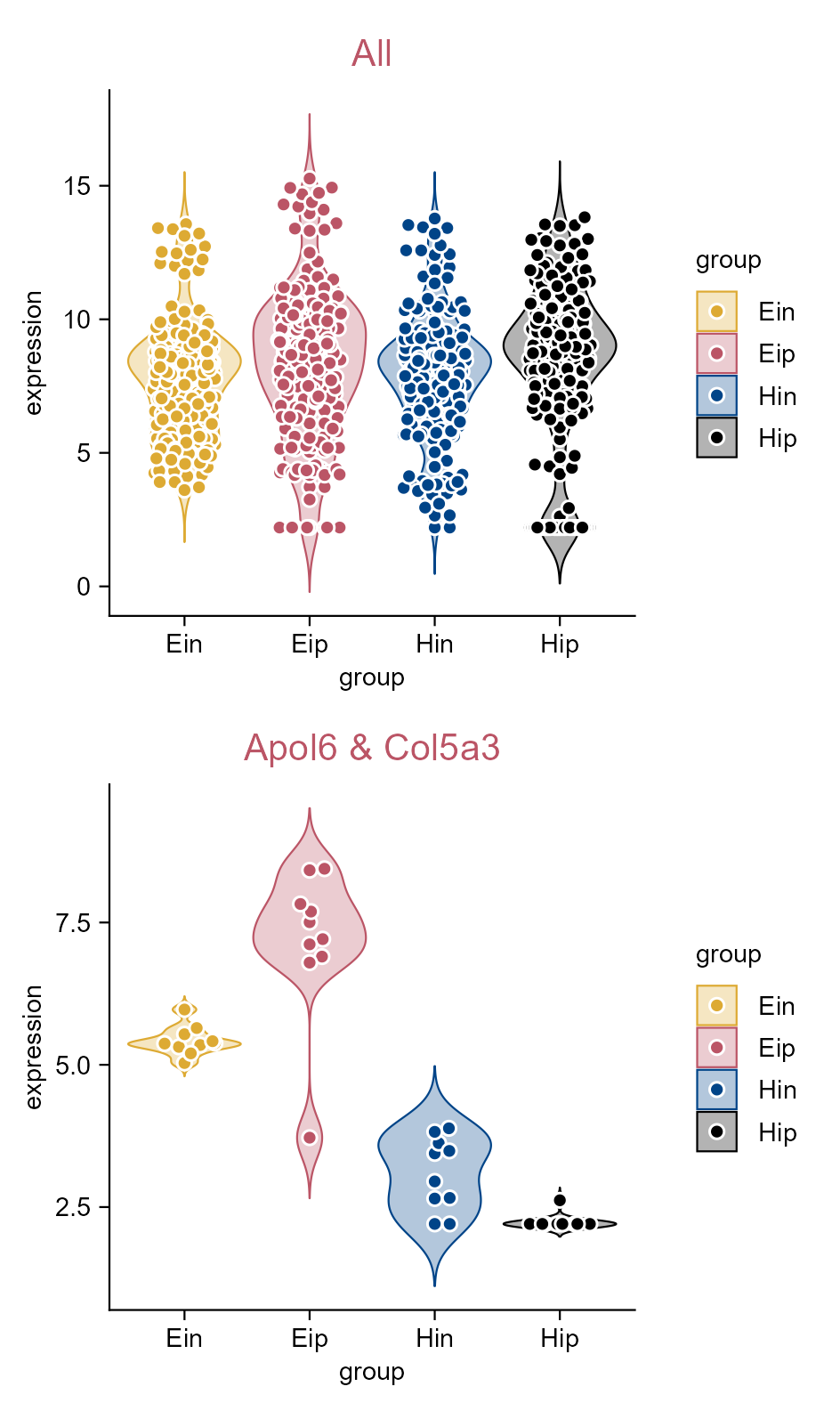
3.17 Preview a subset of dataset (e.g. violin plot)

library(tidyplots)

# View top 10 rows of the columns used
gene_expression |> 
  dplyr::select(group, expression, external_gene_name) |> 
  dplyr::slice_head(n = 10)
# A tibble: 10 × 3
   group expression external_gene_name
   <chr>      <dbl> <chr>             
 1 Hin         2.20 Apol6             
 2 Hin         2.20 Apol6             
 3 Hin         2.66 Apol6             
 4 Hin         2.65 Apol6             
 5 Hin         3.44 Apol6             
 6 Ein         5.03 Apol6             
 7 Ein         5.31 Apol6             
 8 Ein         5.37 Apol6             
 9 Ein         5.54 Apol6             
10 Ein         5.65 Apol6             
# Plot
gene_expression |> 
  tidyplot(
    x = group, 
    y = expression, 
    color = group) |> 
  add_violin(trim = FALSE) |> 
  add_data_points_beeswarm(
    white_border = TRUE) |>
  view_plot(
    title = "All") |> 
  view_plot(
    data = filter_rows(
      external_gene_name %in% c(
        "Apol6", 
        "Col5a3")),
    title = "Apol6 & Col5a3")

Preview a subset of dataset.

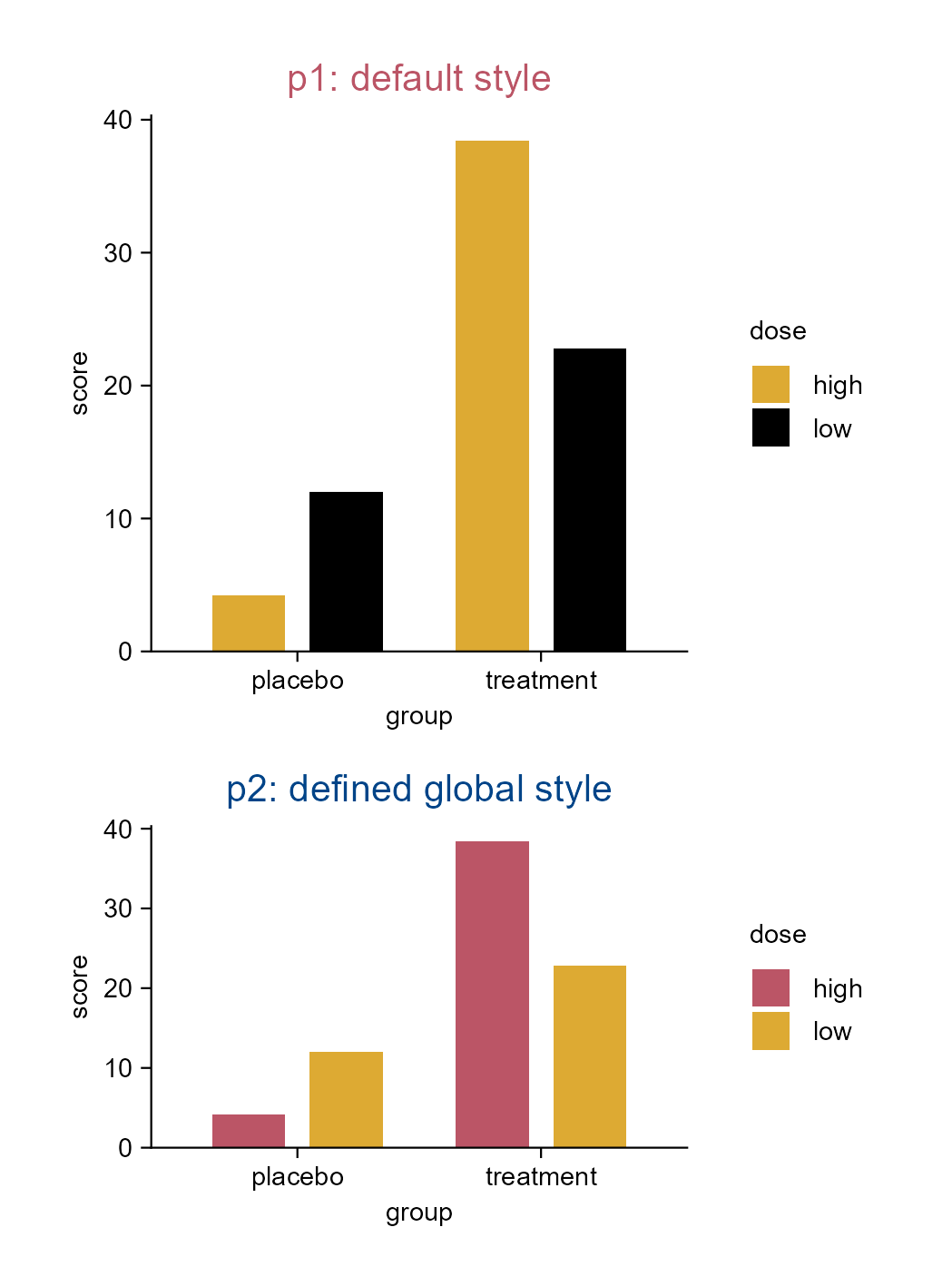
3.18 Set a global default style (e.g. bar plot)

library(tidyplots)

# View top 10 rows of the columns used
study |> 
  dplyr::select(group, score, dose) |> 
  dplyr::slice_head(n = 10)
# A tibble: 10 × 3
   group   score dose 
   <chr>   <dbl> <chr>
 1 placebo     2 high 
 2 placebo     4 high 
 3 placebo     5 high 
 4 placebo     4 high 
 5 placebo     6 high 
 6 placebo     9 low  
 7 placebo     8 low  
 8 placebo    12 low  
 9 placebo    15 low  
10 placebo    16 low  
# eval: false

# Define a global style
my_style <- function(x) {
  x |> 
  adjust_colors(new_colors = c("#bb5566", "#ddaa33")) |> 
  adjust_size(width = 50, height = 30, unit = "mm") |> 
  adjust_title(fontsize = 10, color = "#004488")}

# Plot
p1 <- study |> 
  tidyplot(
    x = group, 
    y = score, 
    color = dose) |> 
  add_mean_bar() |> 
  adjust_size() |> 
  add_title("p1: default style")

# Set global options
tidyplots_options(my_style = my_style)

# Plot
p2 <- study |> 
  tidyplot(
    x = group, 
    y = score, 
    color = dose) |> 
  add_mean_bar() |> 
  add_title("p2: defined global style")

Set a global default style.

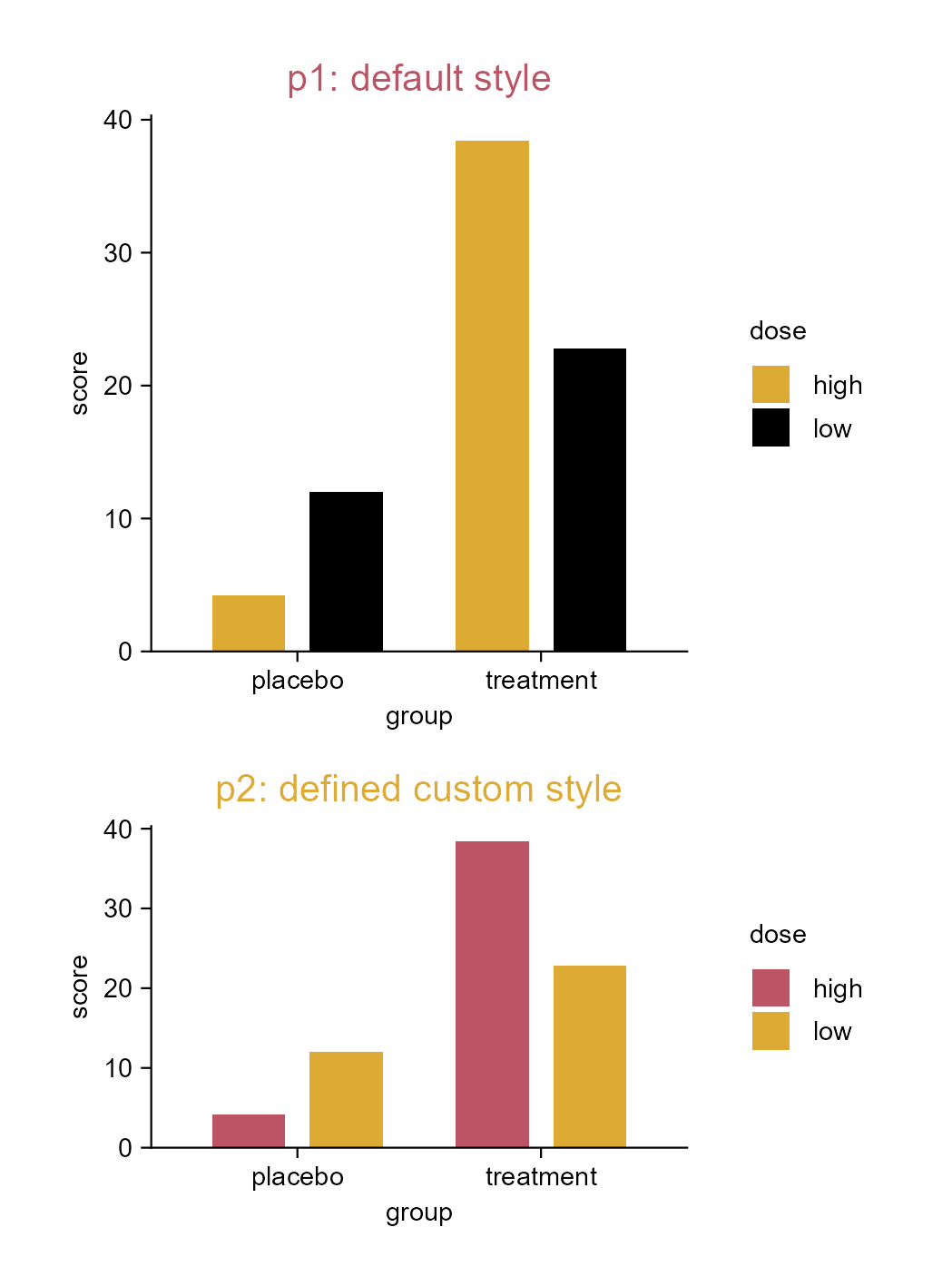
3.19 Set a custom style to reuse (e.g. bar plot)

library(tidyplots)

# View top 10 rows of the columns used
study |> 
  dplyr::select(group, score, dose) |> 
  dplyr::slice_head(n = 10)
# A tibble: 10 × 3
   group   score dose 
   <chr>   <dbl> <chr>
 1 placebo     2 high 
 2 placebo     4 high 
 3 placebo     5 high 
 4 placebo     4 high 
 5 placebo     6 high 
 6 placebo     9 low  
 7 placebo     8 low  
 8 placebo    12 low  
 9 placebo    15 low  
10 placebo    16 low  
# Define a style
my_style <- function(x) {
  x |> 
  adjust_colors(new_colors = c("#bb5566", "#ddaa33")) |> 
  adjust_size(width = 50, height = 30, unit = "mm") |> 
  adjust_title(fontsize = 10, color = "#ddaa33")}

p1 <- study |> 
  tidyplot(
    x = group, 
    y = score, 
    color = dose) |> 
  add_mean_bar() |> 
  adjust_size() |> 
  add_title("p1: default style")

p2 <- study |> 
  tidyplot(
    x = group, 
    y = score, 
    color = dose) |> 
  add_mean_bar() |> 
  add_title("p2: defined custom style") |> 
  my_style()

Set a custom style to reuse.

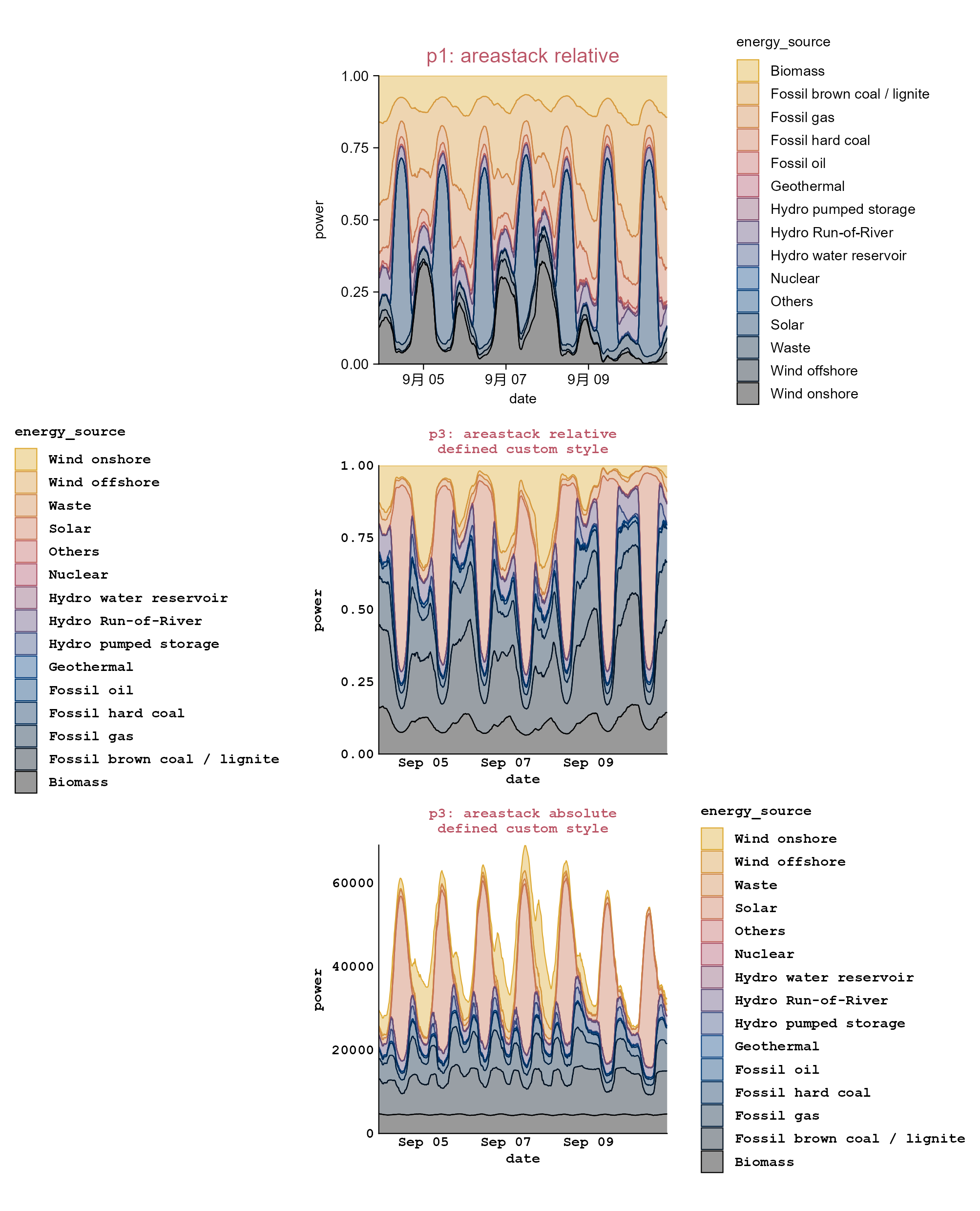
3.20 Set a custom style to reuse (e.g. areastack plot)

library(tidyplots)

# View top 10 rows of the columns used
energy_week |> 
  dplyr::select(date, power, energy_source) |> 
  dplyr::slice_head(n = 10)
# A tibble: 10 × 3
   date                 power energy_source              
   <dttm>               <dbl> <fct>                      
 1 2023-09-03 22:00:00    0   Nuclear                    
 2 2023-09-03 22:00:00 2634.  Hydro Run-of-River         
 3 2023-09-03 22:00:00 4711.  Biomass                    
 4 2023-09-03 22:00:00 8399.  Fossil brown coal / lignite
 5 2023-09-03 22:00:00 1726.  Fossil hard coal           
 6 2023-09-03 22:00:00  401.  Fossil oil                 
 7 2023-09-03 22:00:00 4900.  Fossil gas                 
 8 2023-09-03 22:00:00   17.9 Geothermal                 
 9 2023-09-03 22:00:00  232.  Hydro water reservoir      
10 2023-09-03 22:00:00  586   Hydro pumped storage       
# Define a style
my_style <- function(x) {
  x |> 
    adjust_font(family = "mono", face = "bold") |> 
    remove_x_axis_ticks() |> 
    remove_y_axis_ticks() |> 
    reverse_color_levels() |> 
    adjust_x_axis(labels = scales::label_date( # display dates as "Sep 05" etc.
      format = "%b %d", locale = "en"))}

# Plot
p1 <- energy_week |> 
  tidyplot(
    x = date, 
    y = power, 
    color = energy_source) |> 
  add_areastack_relative() |> 
  add_title(title = "p1: areastack relative")

p2 <- p1 |> 
  adjust_title(
    title = paste("p3: areastack relative", "defined custom style", sep = "\n")) |> 
  adjust_legend_position(position = "left") |> 
  my_style()

p3 <- energy_week |> 
  tidyplot(
    x = date, 
    y = power, 
    color = energy_source) |> 
  add_areastack_absolute() |> 
  add_title(
    title = paste("p3: areastack absolute", "defined custom style", sep = "\n")) |> 
  my_style()

Set a custom style to reuse.
Note

Please note the Chinese character “月” on the x-axis of p1, as the code was run on an x86_64-w64-mingw32/x64 platform with the locale set to Chinese (Simplified)_China.utf8.

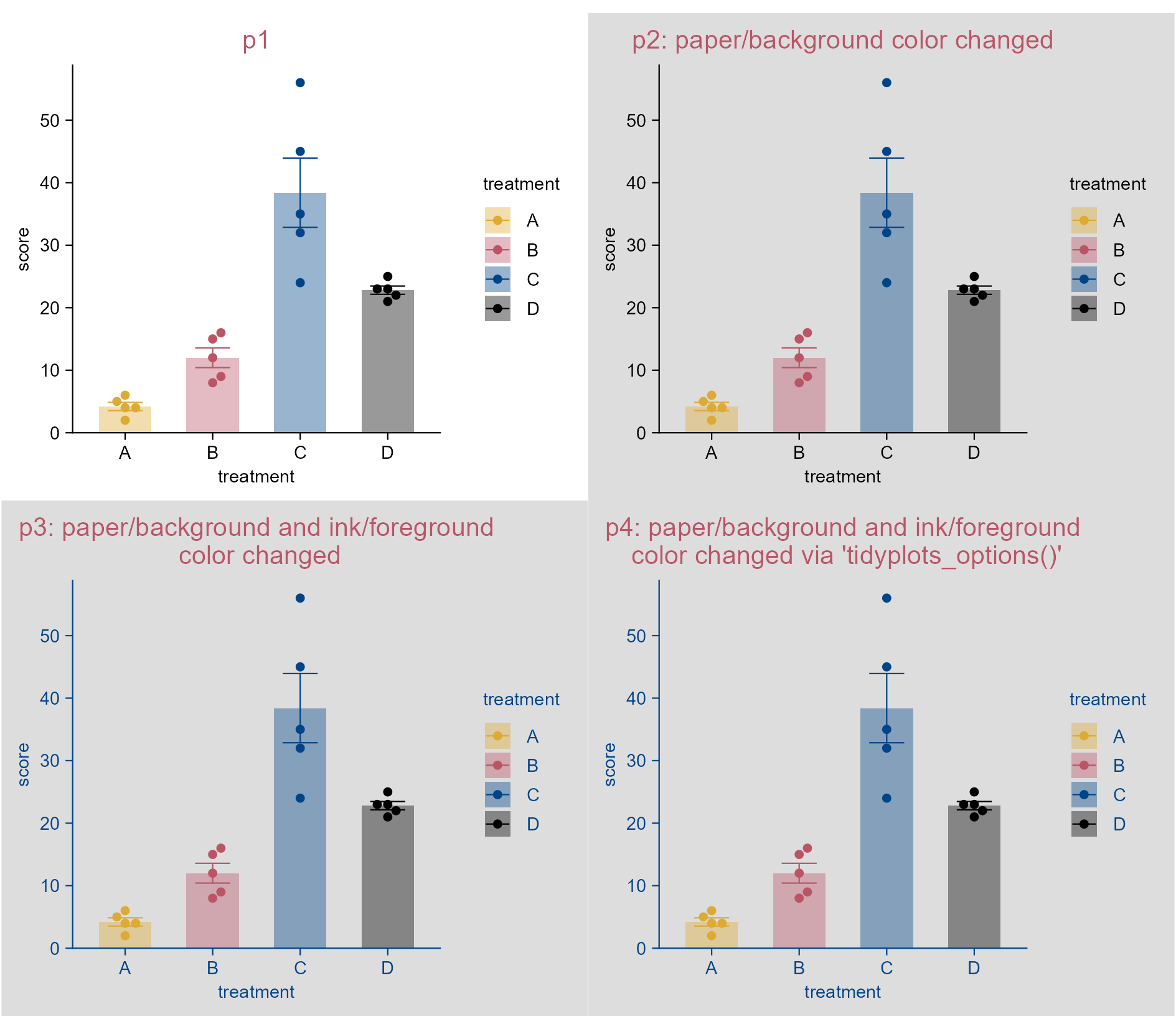
3.21 Plot paper and ink colors (e.g. bar plot)

library(tidyplots)

# View top 10 rows of the columns used
study |> 
  dplyr::select(treatment, score) |> 
  dplyr::slice_head(n = 10)
# A tibble: 10 × 2
   treatment score
   <chr>     <dbl>
 1 A             2
 2 A             4
 3 A             5
 4 A             4
 5 A             6
 6 B             9
 7 B             8
 8 B            12
 9 B            15
10 B            16
# Define a style to reuse
my_style <- function(x) {
  x |> 
  add_mean_bar(alpha = 0.4) |> 
  add_sem_errorbar() |> 
  add_data_points_beeswarm()}

p1 <- study |> 
  tidyplot(x = treatment, y = score, color = treatment) |> 
  my_style() |> 
  add_title(title = "p1")

p2 <- study |> 
  tidyplot(x = treatment, y = score, color = treatment, paper = "#dddddd") |> 
  my_style() |> 
  add_title(title = "p2: paper/background color changed")

p3 <- study |> 
  tidyplot(x = treatment, y = score, color = treatment, paper = "#dddddd", ink = "#004488") |> 
  my_style() |> 
  add_title(title = "p3: paper/background and ink/foreground\n color changed")
# Set global options
tidyplots_options(paper = "#dddddd", ink = "#004488")

p4 <- study |> 
  tidyplot(x = treatment, y = score, color = treatment) |> 
  my_style() |> 
  add_title(
    title = "p4: paper/background and ink/foreground\n color changed via 'tidyplots_options()'")

# Reset tidyplots options
tidyplots_options()

Change plot paper and ink colors.
Note

The title color of p3 and p4 should be in the ink color (i.e. blue #004488). However, it has been changed to red (i.e. #bb5566) to follow the global setting applied throughout this book.

By the way, it seems unreasonable to change the default paper and ink colors for scientific figures.

3.22 Change color scheme (e.g. bar plot)

library(tidyplots)

# View top 10 rows of the columns used
spendings |> 
  dplyr::select(category, amount) |> 
  dplyr::slice_head(n = 10)
# A tibble: 10 × 2
   category       amount
   <chr>           <dbl>
 1 Food              100
 2 Transportation     40
 3 Housing          1200
 4 Utilities          80
 5 Education          75
 6 Insurance         200
 7 Food               60
 8 Utilities          50
 9 Food               90
10 Transportation     40
# Plot
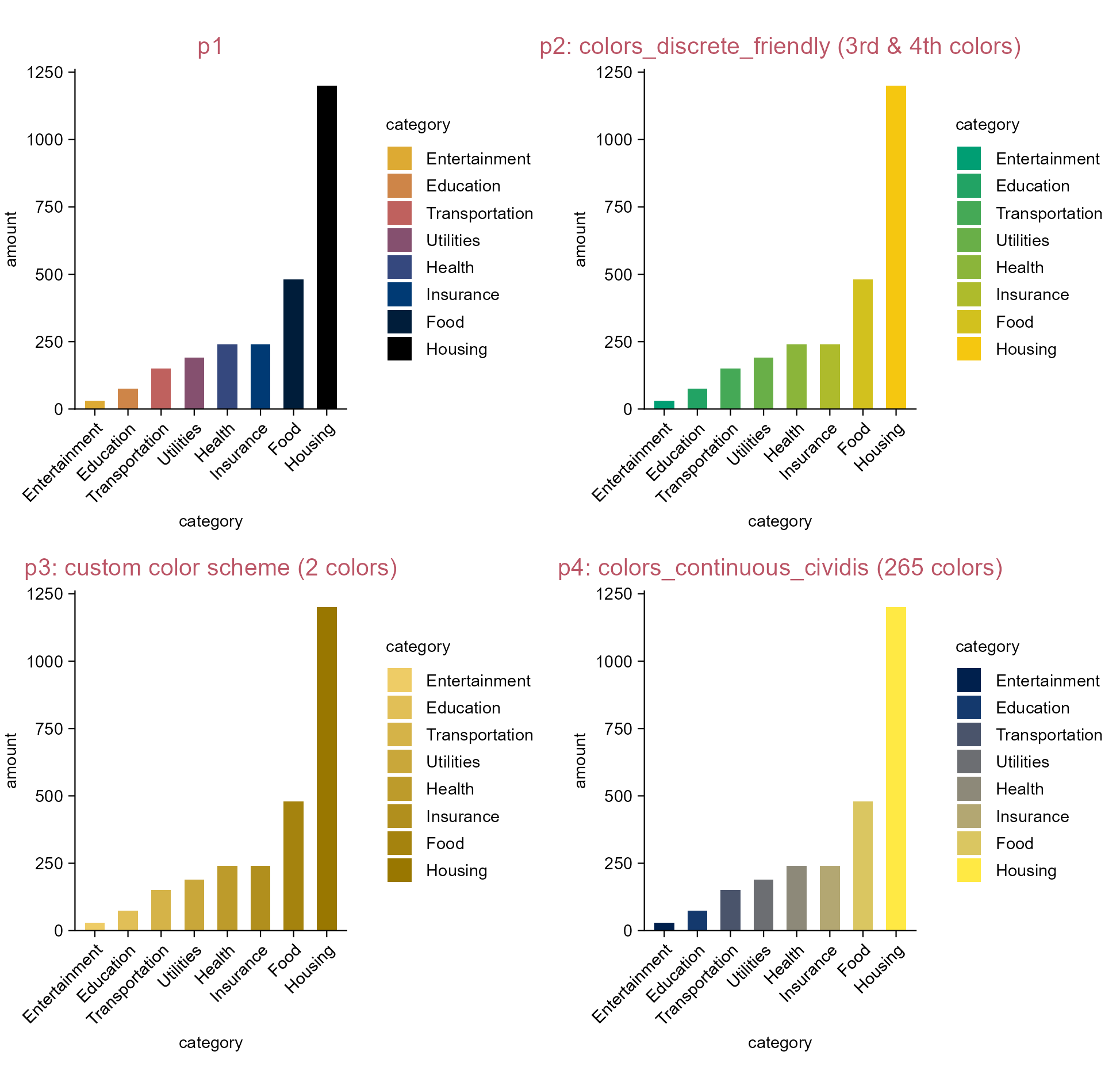
p1 <- spendings |> 
  tidyplot(
    x = category, 
    y = amount, 
    color = category) |> 
  add_sum_bar() |> 
  add_title(title = "p1") |> 
  adjust_x_axis(rotate_labels = TRUE) |> 
  adjust_size(width = 40) |> 
  sort_x_axis_levels() 

p2 <- p1 |> 
  adjust_title(title = "p2: colors_discrete_friendly (3rd & 4th colors)") |> 
  adjust_colors(new_colors = colors_discrete_friendly[3:4])

p3 <- p1 |> 
  adjust_title(title = "p3: custom color scheme (2 colors)") |> 
  adjust_colors(new_colors = c("#eecc66", "#997700"))

p4 <- p1 |> 
  adjust_title(title = "p4: colors_continuous_cividis (265 colors)") |> 
  adjust_colors(new_colors = colors_continuous_cividis)
Note

Tidyplots comes with a number of default color schemes.

A color scheme (default or custom) might contain limited number of colors (e.g. p3), tidyplots will automatically fill up the gaps between colors to deliver exactly the number that is required for the plot.

Similarly, when a color scheme contains more colors than needed (e.g. p4), tidyplots will select the required number of colors by attempting to evenly sample from the supplied color vector.

Change the color scheme.

3.23 Add data ellipses (e.g. dot plot)

library(tidyplots)

# View top 10 rows of the columns used
pca |> 
  dplyr::select(pc1, pc2, group) |> 
  dplyr::slice_head(n = 10)
# A tibble: 10 × 3
      pc1    pc2 group
    <dbl>  <dbl> <chr>
 1 -10.8  -9.17  Hin  
 2 -11.5  -7.84  Hin  
 3 -10.2  -9.11  Hin  
 4  -8.18 -7.30  Hin  
 5 -10.7  -8.15  Hin  
 6 -17.6   3.75  Ein  
 7 -20.8   7.37  Ein  
 8 -15.8  -0.644 Ein  
 9 -17.6   4.16  Ein  
10 -16.0   4.13  Ein  
# Plot
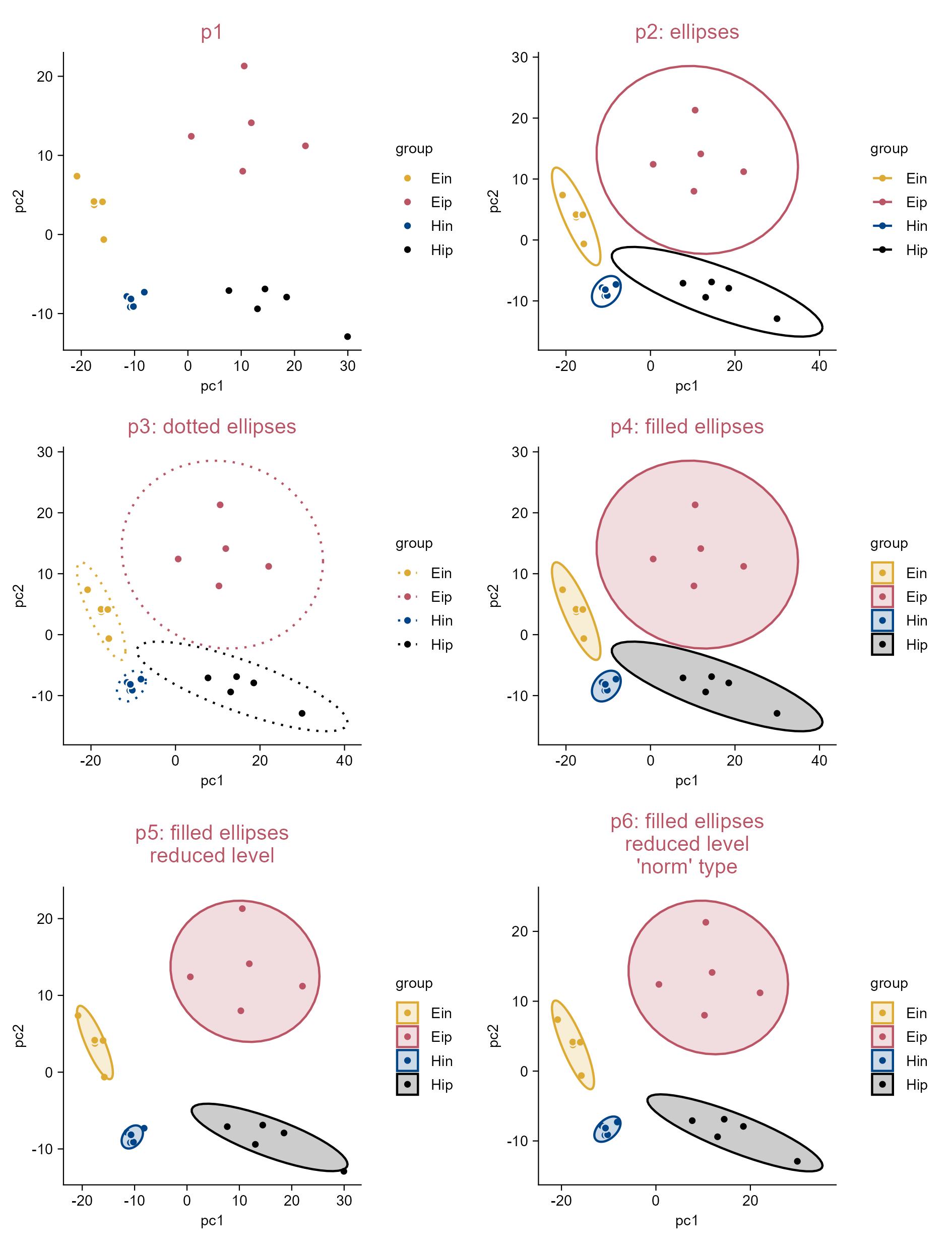
p1 <- pca |> 
  tidyplot(
    x = pc1, 
    y = pc2, 
    color = group) |> 
  add_data_points(white_border = TRUE) |> 
  add_title(title = "p1")

p2 <- p1 |> 
  adjust_title(title = "p2: ellipses") |> 
  add_ellipse()

p3 <- p1 |> 
  adjust_title(title = "p3: dotted ellipses") |> 
  add_ellipse(linetype = "dotted")

p4 <- p1 |> 
  adjust_title(title = "p4: filled ellipses") |> 
  add_ellipse(geom = "polygon", alpha = 0.2)

p5 <- p1 |> 
  adjust_title(title = paste("p5: filled ellipses", 
  "reduced level", sep = "\n")) |> 
  add_ellipse(geom = "polygon", alpha = 0.2, level = 0.8)

p6 <- p1 |> 
  adjust_title(title = paste("p6: filled ellipses", 
  "reduced level", "'norm' type", sep = "\n")) |> 
  add_ellipse(geom = "polygon", alpha = 0.2, level = 0.8, type = "norm")

Add data ellipses.

3.24 Add mean and summary statistics to raw data points (e.g. dot plot)

library(tidyplots)

# View top 10 rows of the column used
climate |> 
  dplyr::select(month, max_temperature) |> 
  dplyr::slice_head(n = 10)
# A tibble: 10 × 2
   month max_temperature
   <chr>           <dbl>
 1 01              -1.49
 2 02               3.37
 3 03               5.05
 4 04               8.34
 5 05              16.2 
 6 06              18.2 
 7 07              20.5 
 8 08              18.2 
 9 09              18.3 
10 10              14.2 
# Plot
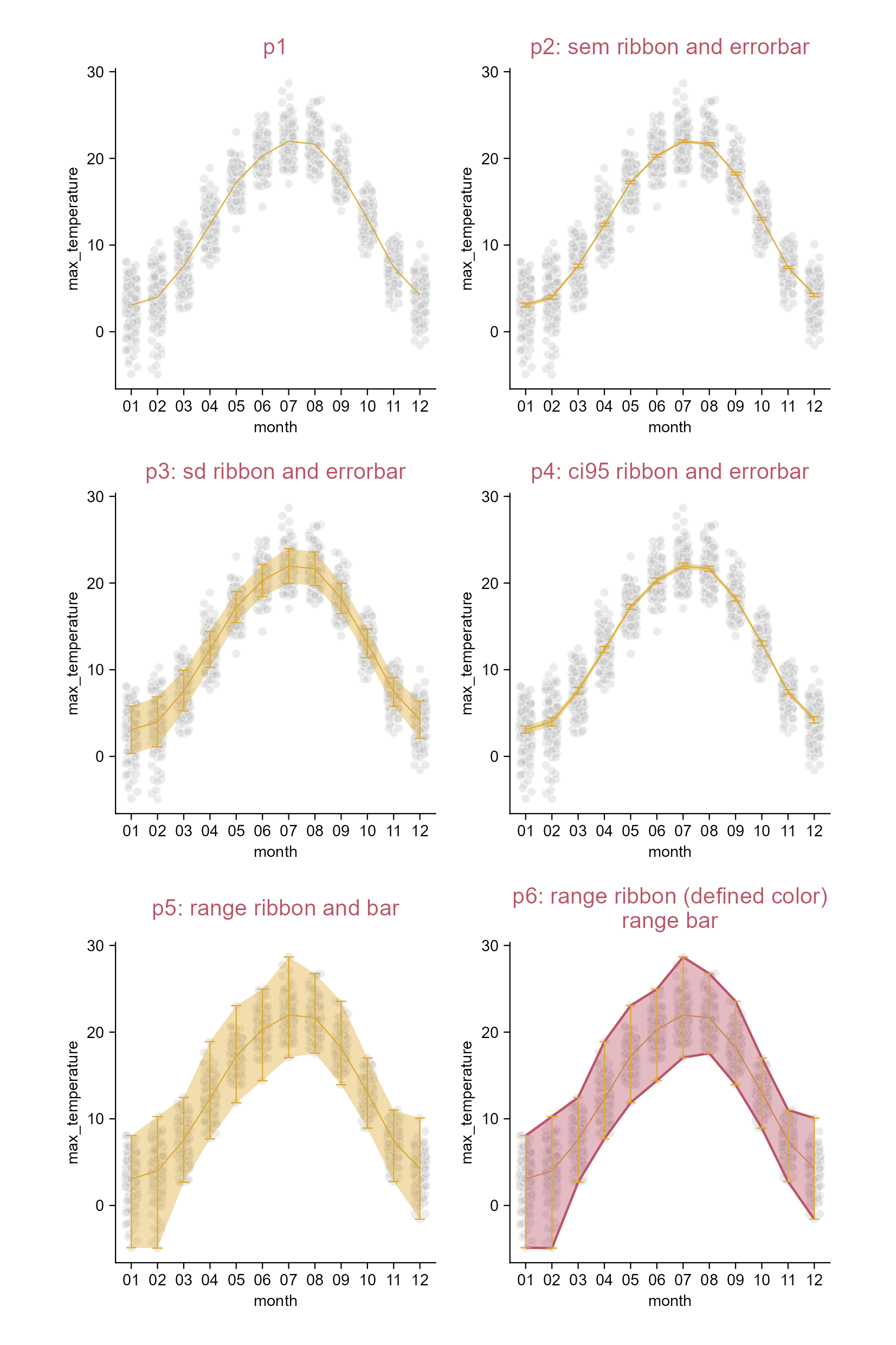
p1 <- climate |> 
  tidyplot(x = month, y = max_temperature) |> 
  add_data_points_beeswarm(alpha = 0.3, color = "#bbbbbb", white_border = TRUE) |> 
  add_mean_line() |> 
  add_title(title = "p1")

p2 <- p1 |> 
  adjust_title(title = "p2: sem ribbon and errorbar") |> 
  add_sem_ribbon() |> 
  add_sem_errorbar()

p3 <- p1 |> 
  adjust_title(title = "p3: sd ribbon and errorbar") |> 
  add_sd_ribbon() |> 
  add_sd_errorbar()

p4 <- p1 |> 
  adjust_title(title = "p4: ci95 ribbon and errorbar") |> 
  add_ci95_ribbon() |> 
  add_ci95_errorbar()

p5 <- p1 |> 
  adjust_title(title = "p5: range ribbon and bar") |> 
  add_range_ribbon() |> 
  add_range_errorbar()

p6 <- p1 |> 
  adjust_title(title = paste(
    "p6: range ribbon (defined color)", 
    "range bar", 
    sep = "\n")) |> 
  add_range_ribbon(color = "#bb5566", fill = "#bb5566") |> 
  add_range_errorbar()

Add mean and summary statistics.

3.25 Add mean and summary statistics to grouped raw data points (e.g. dot plot)

library(tidyplots)

# View top 10 rows of the columns used
time_course |> 
  dplyr::select(day, score, treatment) |> 
  dplyr::slice_head(n = 10)
# A tibble: 10 × 3
     day score treatment
   <dbl> <dbl> <chr>    
 1     0     0 untreated
 2     0     0 untreated
 3     0     0 untreated
 4     0     0 untreated
 5     0     0 untreated
 6     0     0 untreated
 7     0     0 untreated
 8     0     0 untreated
 9     0     0 untreated
10     0     0 untreated
# Plot
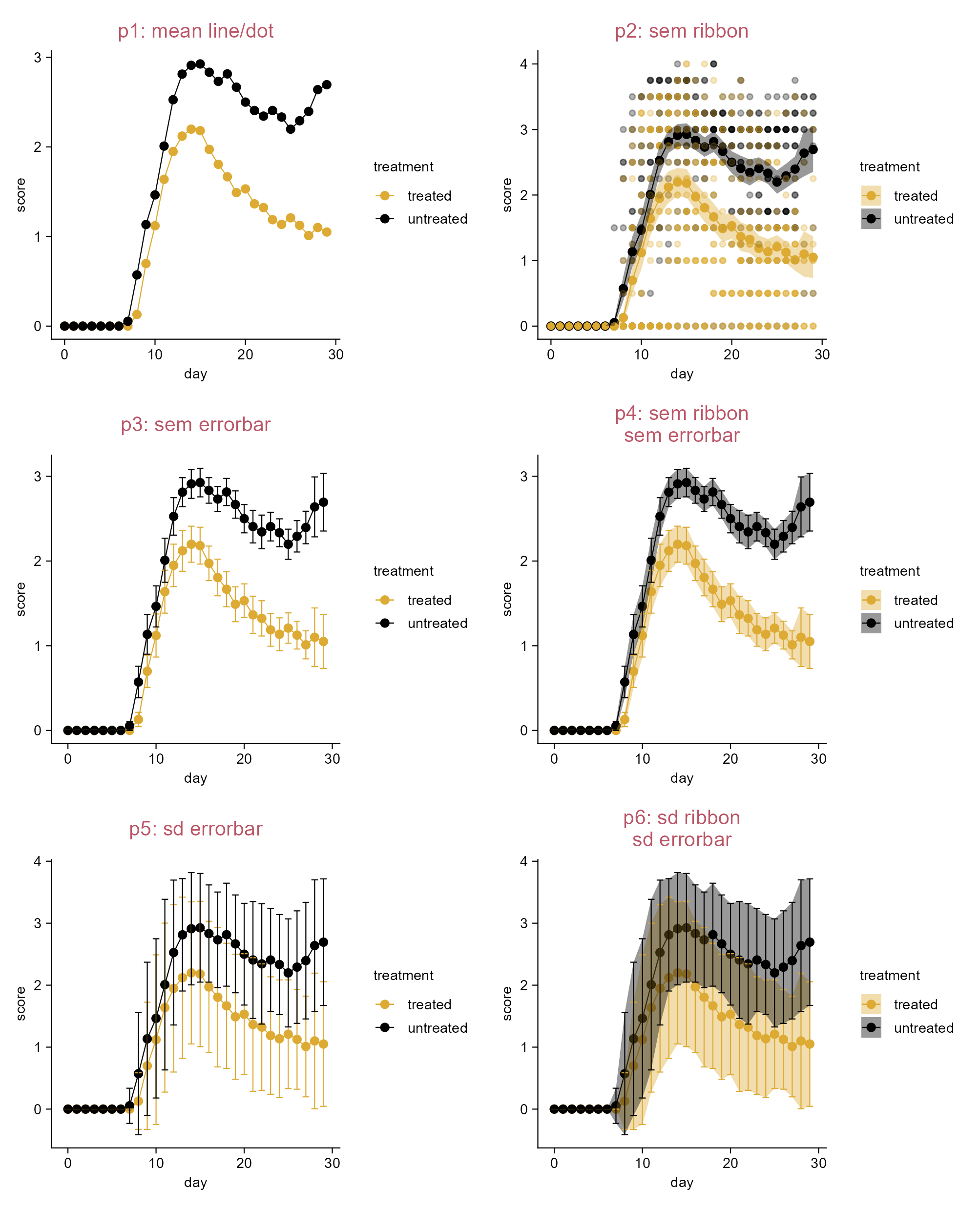
p1 <- time_course |> 
  tidyplot(
    x = day, 
    y = score, 
    color = treatment) |> 
  add_mean_line() |> 
  add_mean_dot(size = 1.5) |> 
  add_title(title = "p1: mean line/dot")

p2 <- p1 |> 
  adjust_title(title = "p2: sem ribbon") |> 
  add_data_points(alpha = 0.3) |> 
  add_sem_ribbon()  

p3 <- p1 |> 
  adjust_title(title = "p3: sem errorbar") |> 
  add_sem_errorbar(width = 1.5)

p4 <- p1 |> 
  adjust_title(title = paste("p4: sem ribbon", "sem errorbar", sep = "\n")) |> 
  add_sem_ribbon() |> 
  add_sem_errorbar(width = 1.5)

p5 <- p1 |> 
  adjust_title(title = "p5: sd errorbar") |> 
  add_sd_errorbar(width = 1.5)

p6 <- p1 |> 
  adjust_title(title = paste("p6: sd ribbon", "sd errorbar", sep = "\n")) |> 
  add_sd_ribbon() |> 
  add_sd_errorbar(width = 1.5)

Add mean and summary statistics (grouped data points).

3.26 Add fit curve to raw data points (i.e. dot plot)

library(tidyplots)

# View top 10 rows of the columns used
time_course |> 
  dplyr::select(score, day) |> 
  dplyr::slice_head(n = 10)
# A tibble: 10 × 2
   score   day
   <dbl> <dbl>
 1     0     0
 2     0     0
 3     0     0
 4     0     0
 5     0     0
 6     0     0
 7     0     0
 8     0     0
 9     0     0
10     0     0
# Plot
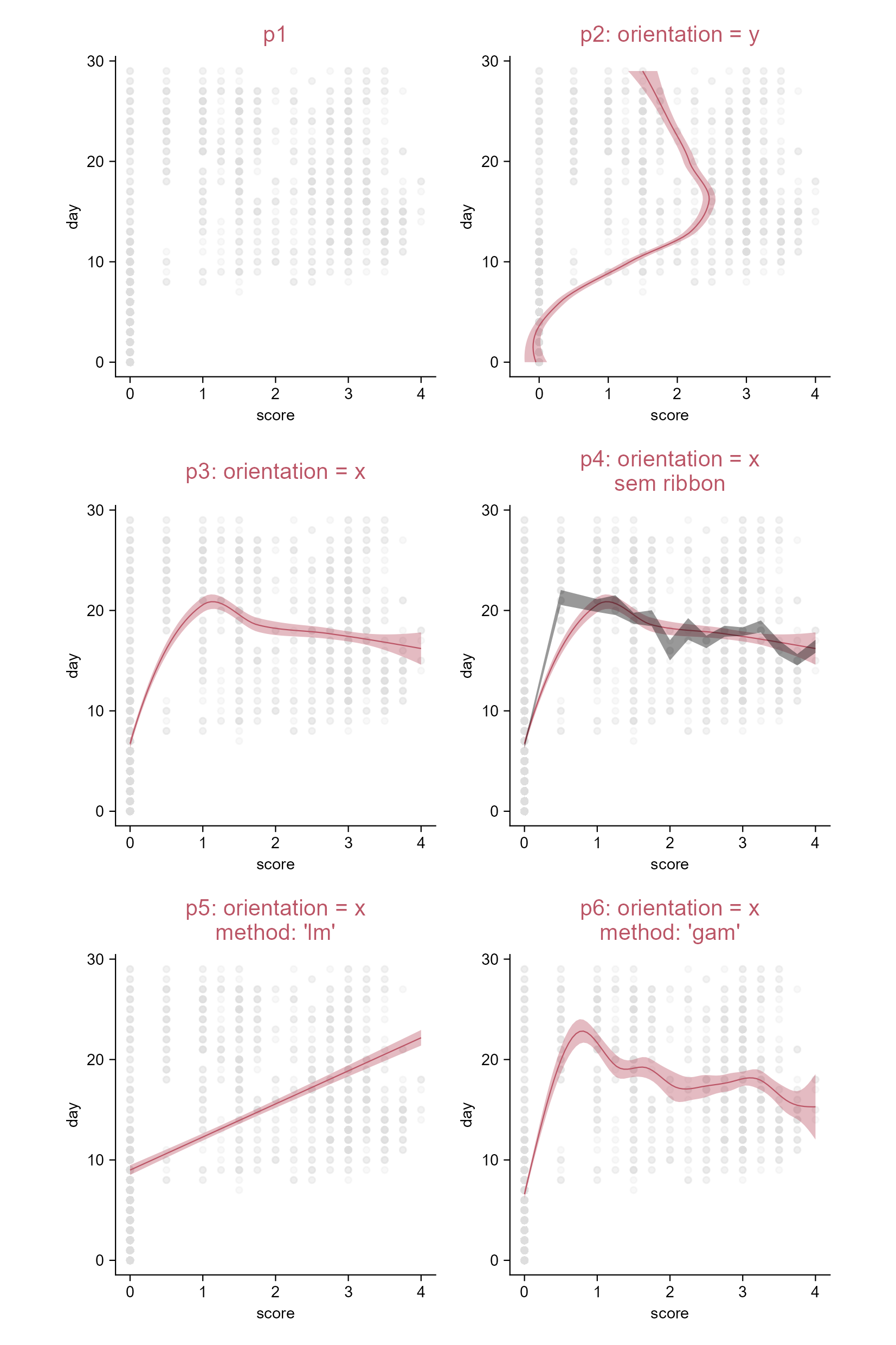
p1 <- time_course |> 
  tidyplot(
    x = score, 
    y = day) |> 
  add_title(title = "p1") |> 
  add_data_points(alpha = 0.2, color = "#dddddd")

p2 <- p1 |> 
  adjust_title(title = "p2: orientation = y") |> 
  add_curve_fit(
    orientation = "y", color = "#bb5566", fill = "#bb5566")

p3 <- p1 |> 
  adjust_title(title = "p3: orientation = x") |> 
  add_curve_fit(
    orientation = "x", color = "#bb5566", fill = "#bb5566")

p4 <- p1 |> 
  adjust_title(title = paste("p4: orientation = x", "sem ribbon", sep = "\n")) |> 
  add_curve_fit(
    orientation = "x", color = "#bb5566", fill = "#bb5566") |> 
  add_sem_ribbon(fill = "#000000")

p5 <- p1 |> 
  adjust_title(title = paste("p5: orientation = x", "method: 'lm'", sep = "\n")) |> 
  add_curve_fit(
    method = "lm", orientation = "x", color = "#bb5566", fill = "#bb5566")

p6 <- p1 |> 
  adjust_title(title = paste("p6: orientation = x", "method: 'gam'", sep = "\n")) |> 
  add_curve_fit(
    method = "gam", orientation = "x", color = "#bb5566", fill = "#bb5566")

Add fit curve.

3.27 Plotmath expressions in title (e.g. bar plot)

# A tibble: 10 × 2
   treatment score
   <chr>     <dbl>
 1 A             2
 2 A             4
 3 A             5
 4 A             4
 5 A             6
 6 B             9
 7 B             8
 8 B            12
 9 B            15
10 B            16
# eval: false
# Plot
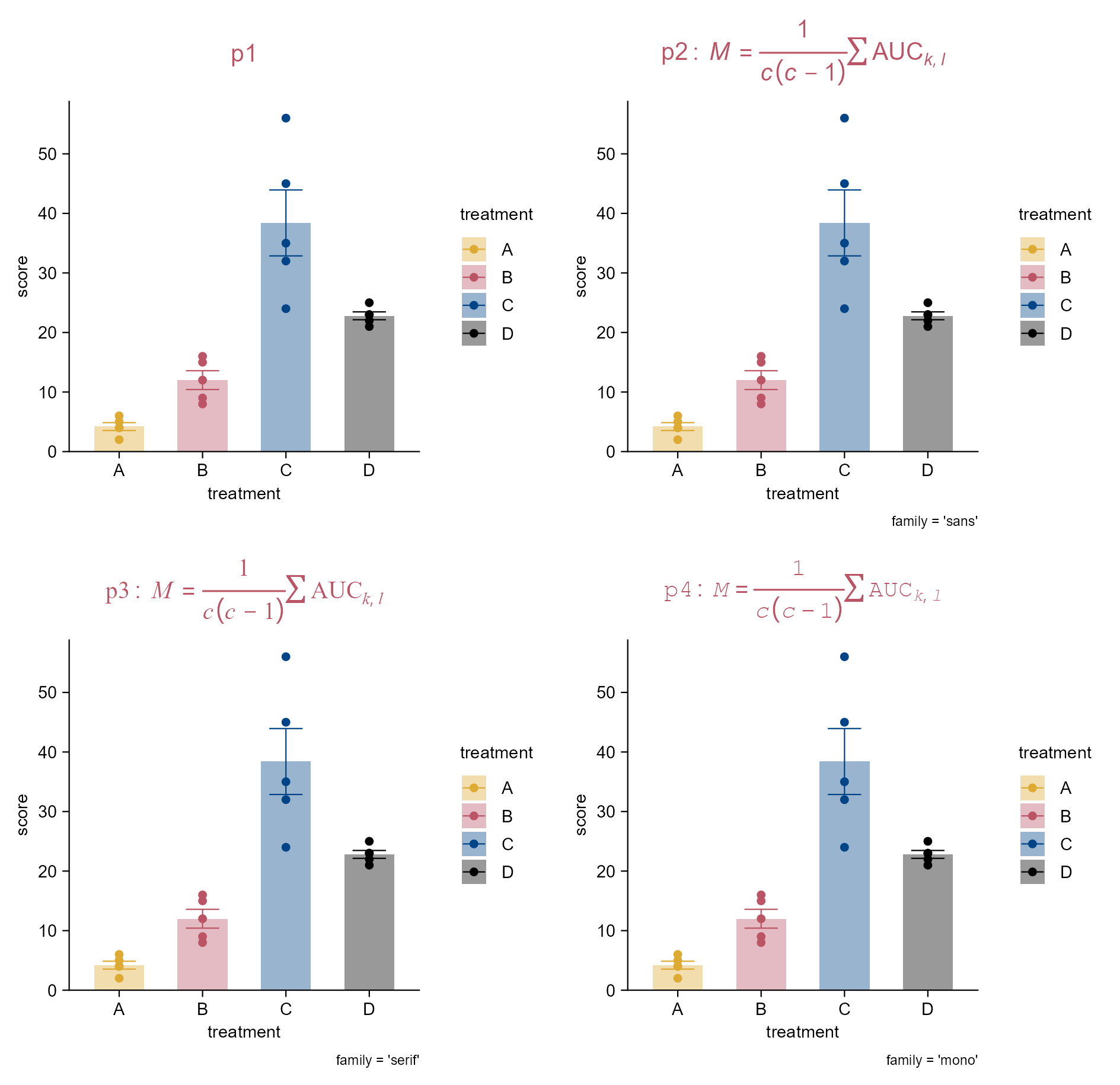
p1 <- study |> 
  tidyplot(
    x = treatment, 
    y = score, 
    color = treatment) |> 
  add_data_points() |> 
  add_mean_bar(alpha = 0.4) |> 
  adjust_title(title = "p1") |> 
  add_sem_errorbar()

p2 <- p1 |>  
  adjust_title(
    title = 
      "$p2:~italic(M)==frac(1,italic(c)(italic(c)-1))*sum(AUC[italic(list(k,l))])$",  
    family = "sans") |> 
  add_caption(caption = "family = 'sans'")

p3 <- p1 |> 
  adjust_title(
    title = 
      "$p3:~italic(M)==frac(1,italic(c)(italic(c)-1))*sum(AUC[italic(list(k,l))])$",  
    family = "serif") |> 
  add_caption(caption = "family = 'serif'")

p4 <- p1 |> 
  adjust_title(
    title = 
      "$p4:~italic(M)==frac(1,italic(c)(italic(c)-1))*sum(AUC[italic(list(k,l))])$",  
    family = "mono") |> 
  add_caption(caption = "family = 'mono'")
Tip

Just surrond your string by “$” characters.

Plotmath expressions work with plot titles, legend titles, axis titles, axis labels, caption, and more.

Plotmath expression in title.

3.28 Plotmath expressions in more positions (e.g. bar plot)

library(tidyplots)

# View top 10 rows of the columns used
study |> 
  dplyr::select(x = treatment, y = score) |> 
  dplyr::slice_head(n = 10)
# A tibble: 10 × 2
   x         y
   <chr> <dbl>
 1 A         2
 2 A         4
 3 A         5
 4 A         4
 5 A         6
 6 B         9
 7 B         8
 8 B        12
 9 B        15
10 B        16
# Plot
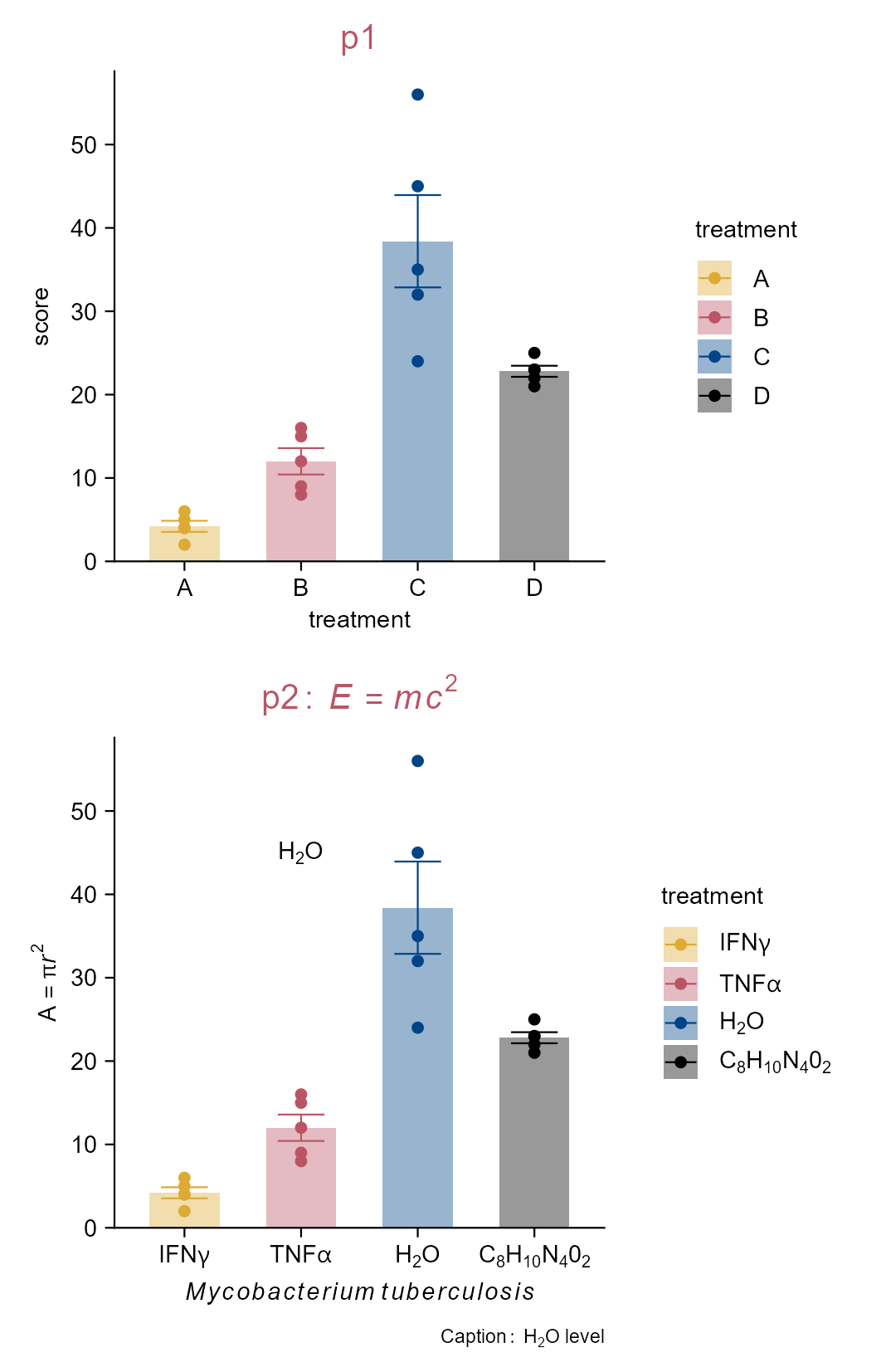
p1 <- study |> 
  tidyplot(
    x = treatment, 
    y = score, 
    color = treatment) |> 
  add_data_points() |> 
  add_mean_bar(alpha = 0.4) |> 
  add_sem_errorbar() |> 
  add_title(title = "p1")

p2 <- p1 |> 
  rename_x_axis_levels(
    new_names = c(
      "A" = "$IFN*gamma$",
      "B" = "$TNF*alpha$",
      "C" = "$H[2]*O$",
      "D" = "$C[8]*H[10]*N[4]*0[2]$")) |> 
  adjust_title(
    title = "$p2:~italic(E)==italic(m)*italic(c^{2})$") |> 
  add_caption(
    caption = "$Caption:~H[2]*O~level$") |> 
  add_annotation_text(
    text = "$H[2]*O$", x = 2, y = 45) |> 
  adjust_x_axis_title(
    title = "$italic(Mycobacterium~tuberculosis)$") |> 
  adjust_y_axis_title(
    title = "$A==pi*italic(r)^{2}$")
Tip

Just surrond your string by “$” characters.

Plotmath expressions work with plot titles, legend titles, axis titles, axis labels, caption, and more.

Plotmath expression in more poistions.

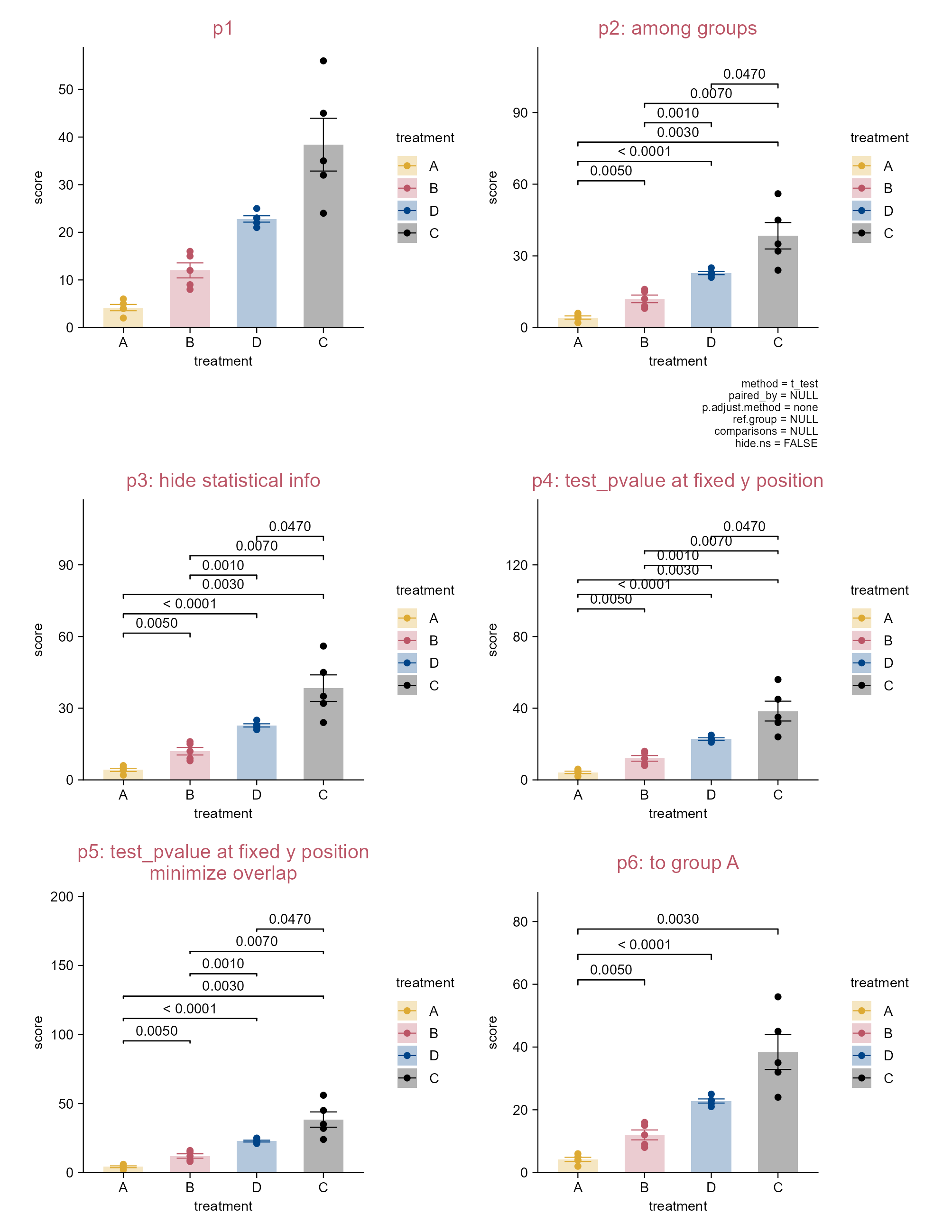
3.29 Group comparisons (e.g. bar plot)

library(tidyplots)

# View top 10 rows of the columns used
study |> dplyr::select(treatment, score) |> 
  dplyr::slice_head(n = 10)
# A tibble: 10 × 2
   treatment score
   <chr>     <dbl>
 1 A             2
 2 A             4
 3 A             5
 4 A             4
 5 A             6
 6 B             9
 7 B             8
 8 B            12
 9 B            15
10 B            16
# Plot
p1 <- study |> 
  tidyplot(
    x = treatment, 
    y = score, 
    color = treatment) |> 
  add_mean_bar(alpha = 0.3) |> 
  add_sem_errorbar() |> 
  add_data_points() |> 
  add_title(title = "p1") |> 
  sort_x_axis_levels()

p2 <- p1 |> 
  adjust_title(title = "p2: among groups") |> 
  add_test_pvalue()

p3 <- p1 |> 
  adjust_title(title = "p3: hide statistical info") |> 
  add_test_pvalue(hide_info = TRUE)

p4 <- p1 |> 
  adjust_title(title = "p4: test_pvalue at fixed y position") |> 
  add_test_pvalue(hide_info = TRUE, y = 90)

p5 <- p1 |> 
  adjust_title(
    title = paste(
      "p5: test_pvalue at fixed y position",
      "minimize overlap", sep = "\n")) |> 
  add_test_pvalue(hide_info = TRUE, y = 90, step.increase = 0.3)

p6 <- p1 |> 
  adjust_title(title = "p6: to group A") |> 
  add_test_pvalue(ref.group = "A", hide_info = TRUE)

Group comparisons.

3.30 Test selected comparisons (e.g. dot plot)

library(tidyplots)

# View top 10 rows of the columns used
study |> 
  dplyr::select(treatment, score) |> 
  dplyr::slice_head(n = 10)
# A tibble: 10 × 2
   treatment score
   <chr>     <dbl>
 1 A             2
 2 A             4
 3 A             5
 4 A             4
 5 A             6
 6 B             9
 7 B             8
 8 B            12
 9 B            15
10 B            16
# Plot
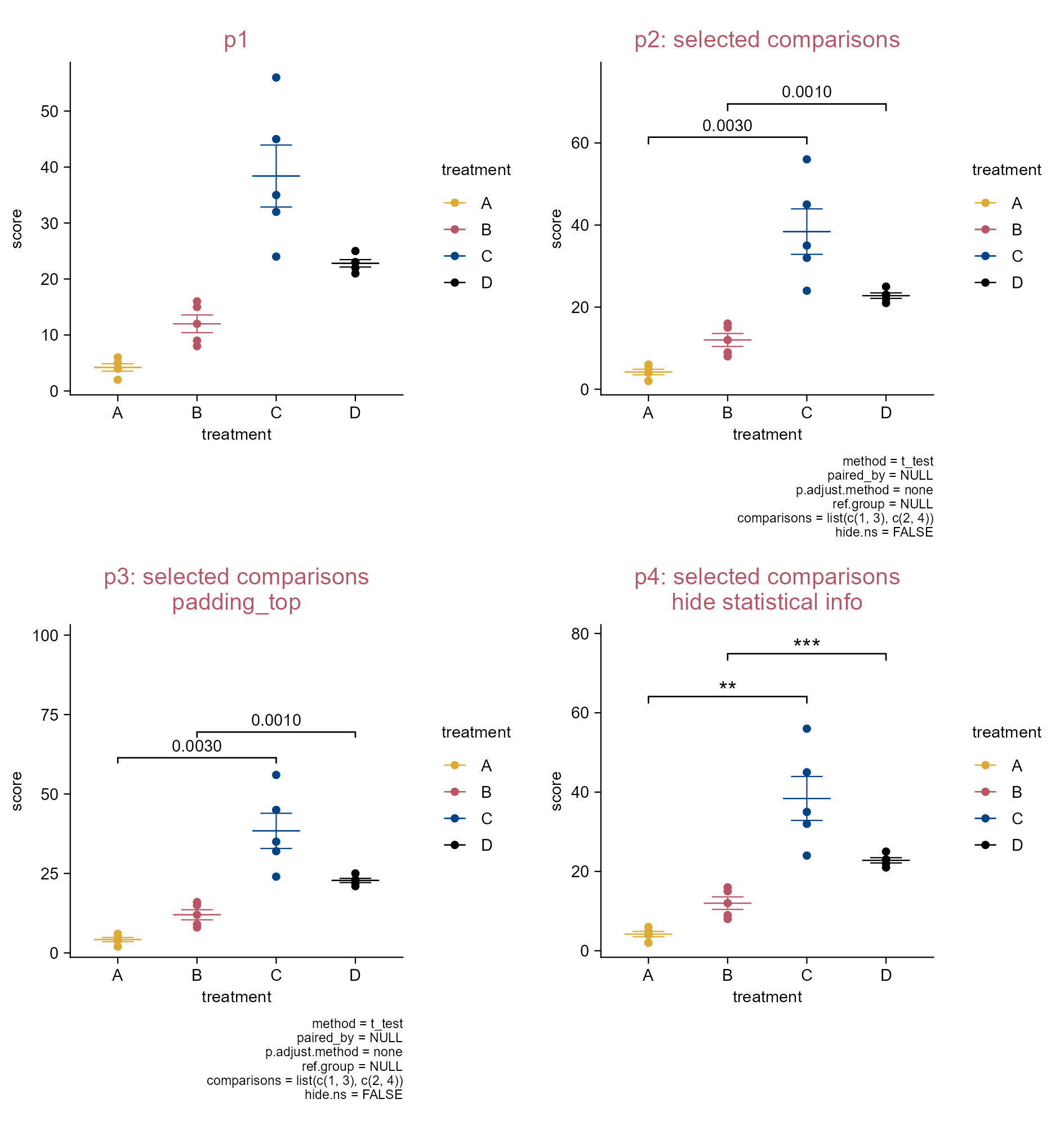
p1 <- study |> 
  tidyplot(
    x = treatment, 
    y = score, 
    color = treatment) |> 
  add_mean_dash() |> 
  add_sem_errorbar() |> 
  add_data_points() |> 
  add_title(title = "p1")

p2 <- p1 |> 
  adjust_title(title = "p2: selected comparisons") |> 
  add_test_pvalue(
    comparisons = list(c(1, 3), c(2, 4)))

p3 <- p1 |> 
  adjust_title(
    title = paste(
      "p3: selected comparisons", 
      "padding_top", 
      sep = "\n")) |> 
  add_test_pvalue(
    comparisons = list(c(1, 3), c(2, 4)), 
    padding_top = 0.5)

p4 <- p1 |> 
  adjust_title(
    title = paste(
      "p4: selected comparisons", 
      "hide statistical info", 
      sep = "\n")) |> 
  add_test_asterisks(
    comparisons = list(c(1, 3), c(2, 4)), 
    hide_info = TRUE)

Test selected comparisons.

3.31 Compare groups (e.g. boxplot)

library(tidyplots)

# View top 10 rows of the columns used
study |> 
  dplyr::select(group, score, dose, treatment) |> 
  dplyr::slice_head(n = 10)
# A tibble: 10 × 4
   group   score dose  treatment
   <chr>   <dbl> <chr> <chr>    
 1 placebo     2 high  A        
 2 placebo     4 high  A        
 3 placebo     5 high  A        
 4 placebo     4 high  A        
 5 placebo     6 high  A        
 6 placebo     9 low   B        
 7 placebo     8 low   B        
 8 placebo    12 low   B        
 9 placebo    15 low   B        
10 placebo    16 low   B        
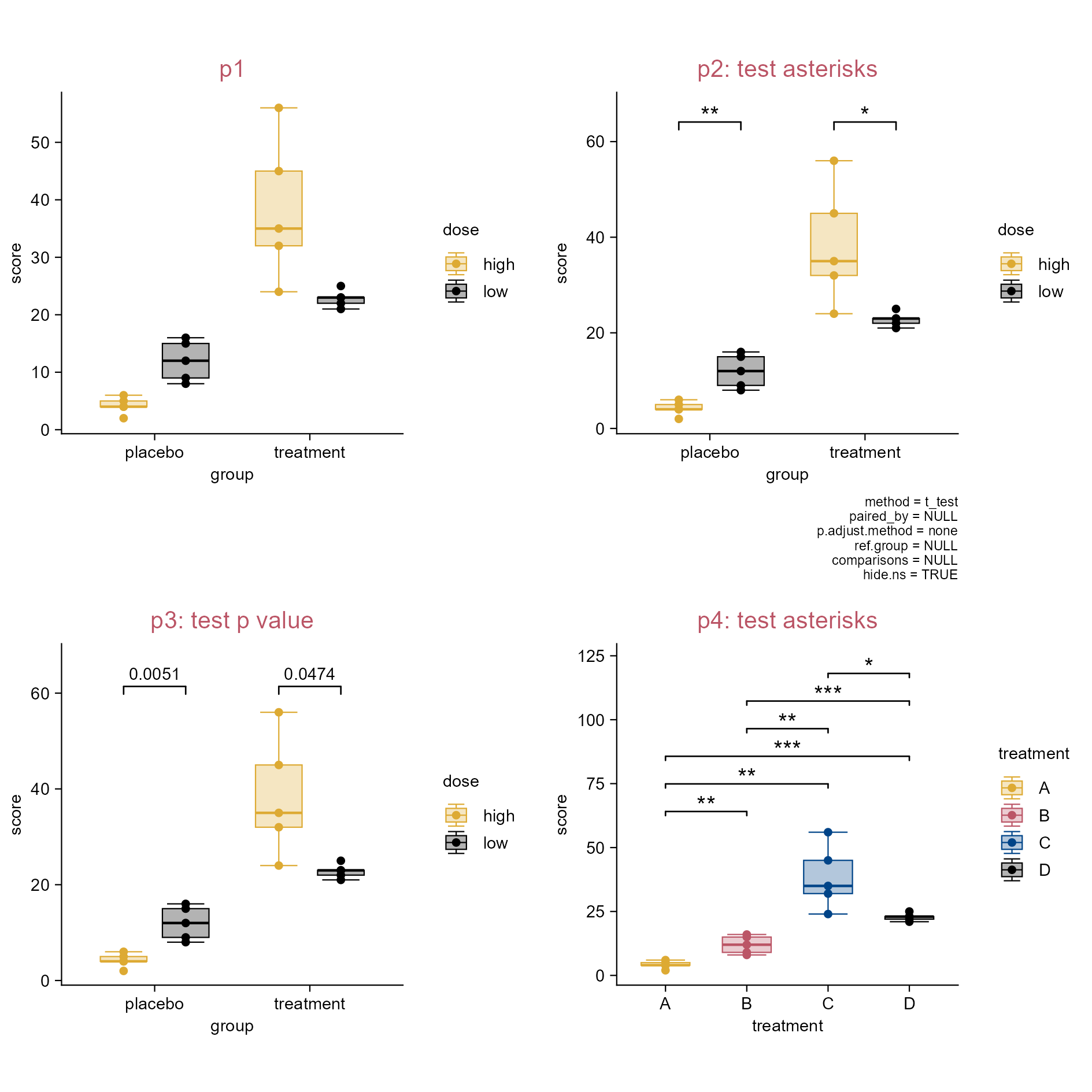
p1 <- study |> 
  tidyplot(
    x = group, 
    y = score, 
    color = dose) |> 
  add_boxplot() |> 
  add_data_points() |> 
  add_title(title = "p1")

p2 <- p1 |> 
  adjust_title(title = "p2: test asterisks") |> 
  add_test_asterisks()

p3 <- p1 |> 
  adjust_title(title = "p3: test p value") |> 
  add_test_pvalue(hide_info = TRUE)

p4 <- study |> 
  tidyplot(
    x = treatment, 
    y = score, 
    color = treatment) |> 
  add_boxplot() |> 
  add_data_points() |> 
  add_test_asterisks(hide_info = TRUE) |> 
  add_title(title = "p4: test asterisks")

Compare groups.

3.32 Paired testing (e.g. boxplot)

library(tidyplots)

y <- c(2.3, 4.5, 6.3, 3.4, 7.8, 6.7)
df <- data.frame(
  y = c(y, y + c(0.8, 0.75)),
  group = paste0("g", rep(c(1, 2), each = 6)),
  batch = paste0("b", c(1:6, 1:6)))

# View df
df |> tibble::tibble()
# A tibble: 12 × 3
       y group batch
   <dbl> <chr> <chr>
 1  2.3  g1    b1   
 2  4.5  g1    b2   
 3  6.3  g1    b3   
 4  3.4  g1    b4   
 5  7.8  g1    b5   
 6  6.7  g1    b6   
 7  3.1  g2    b1   
 8  5.25 g2    b2   
 9  7.1  g2    b3   
10  4.15 g2    b4   
11  8.6  g2    b5   
12  7.45 g2    b6   
# Plot
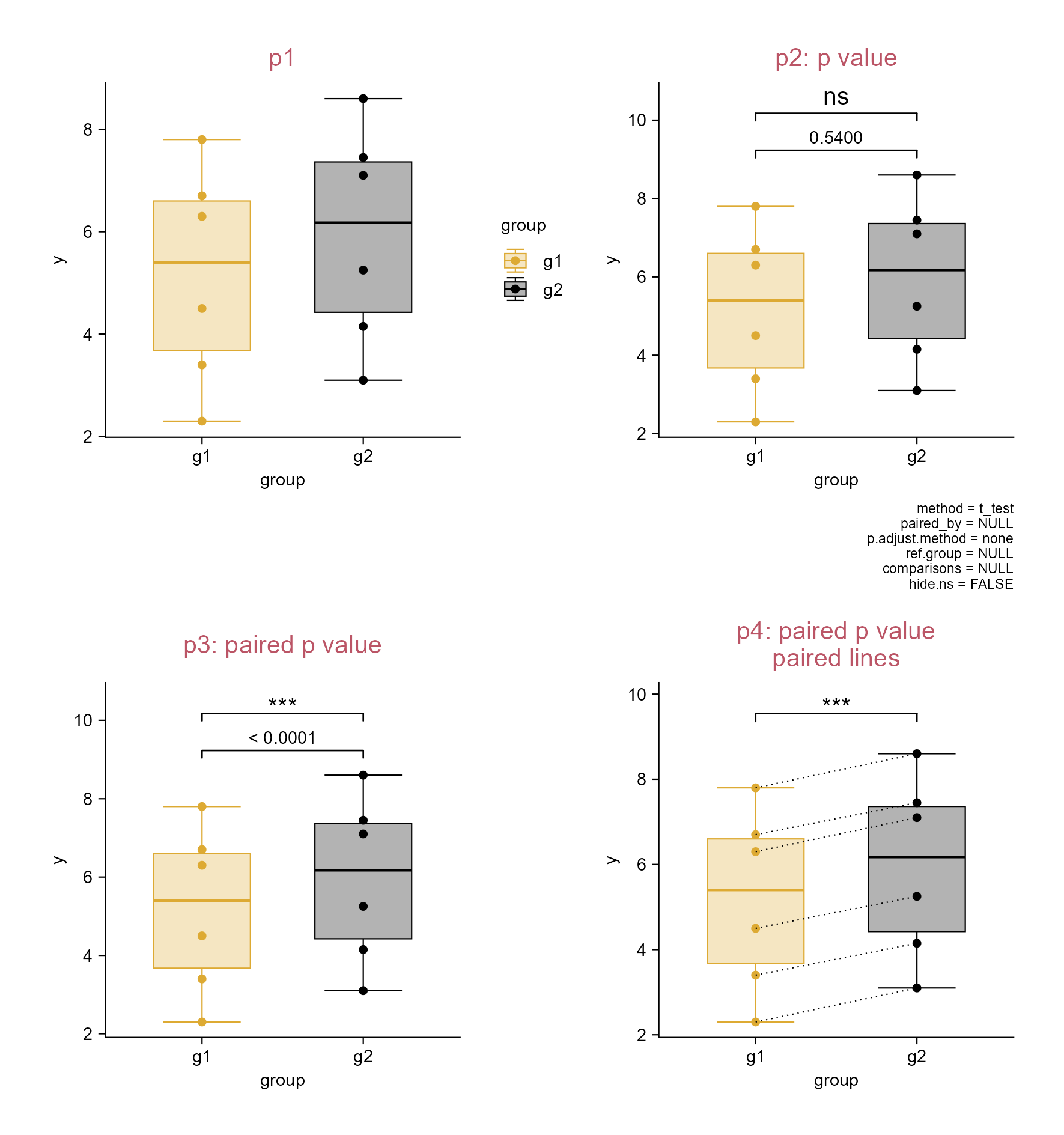
p1 <- df |> 
  tidyplot(
    x = group, 
    y = y, 
    color = group) |> 
  add_boxplot() |> 
  add_data_points() |> 
  add_title(title = "p1")

p2 <- p1 |> 
  remove_legend() |> 
  adjust_title(title = "p2: p value") |> 
  add_test_pvalue() |> 
  add_test_asterisks(bracket.nudge.y = 0.25, hide.ns = FALSE, 
    hide_info = TRUE, vjust = -0.3)

p3 <- p1 |> 
  remove_legend() |> 
  adjust_title(title = "p3: paired p value") |> 
  add_test_pvalue(paired_by = batch, hide_info = TRUE) |> 
  add_test_asterisks(paired_by = batch, bracket.nudge.y = 0.25, hide_info = TRUE)

p4 <- p1 |> 
  remove_legend() |> 
  adjust_title(title = paste("p4: paired p value", "paired lines", sep = "\n")) |> 
  add_test_asterisks(paired_by = batch, hide_info = TRUE) |> 
  add_line(group = batch, color = "#000000", linetype = "dotted")

Paired testing.

3.33 Add ggplot2 (extension) code (e.g. dot plot)

Tip

Because tidyplots is based on ggplot2 … thereby, tidyplots provides access to a wide range of features that are implemented within ggplot2 or ggplot2 extension packages … add() helper function.

library(tidyplots)

# View top 10 rows of the columns used
study |> 
  dplyr::select(treatment, score) |> 
  dplyr::slice_head(n = 10)
# A tibble: 10 × 2
   treatment score
   <chr>     <dbl>
 1 A             2
 2 A             4
 3 A             5
 4 A             4
 5 A             6
 6 B             9
 7 B             8
 8 B            12
 9 B            15
10 B            16
# Plot
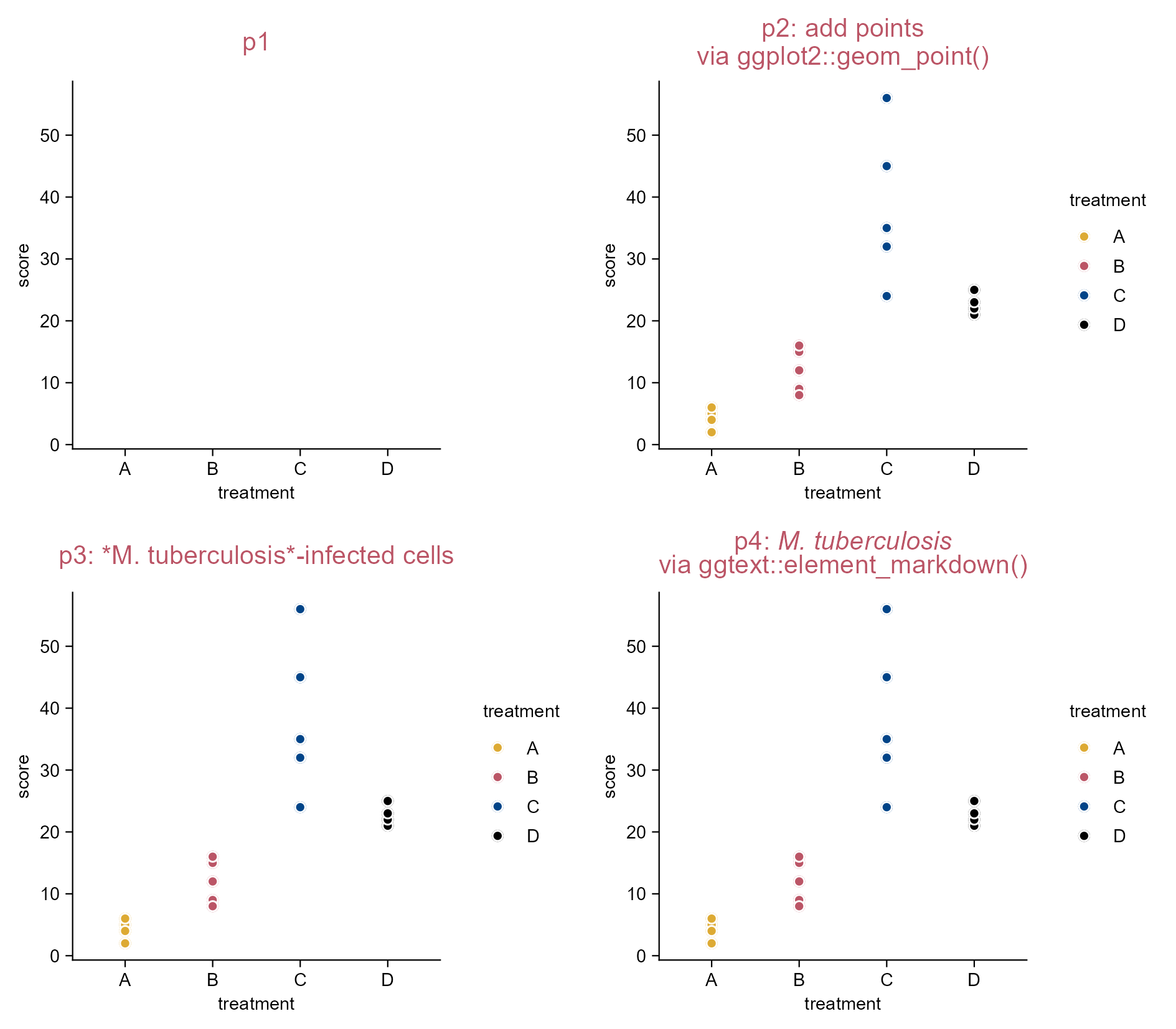
p1 <- study |> 
  tidyplot(x = treatment, y = score, color = treatment) |> 
  add_title(title = "p1")

p2 <- p1 |> 
  adjust_title(title = paste(
    "p2: add points", 
    "via ggplot2::geom_point()", 
    sep = "\n")) |> 
  add(ggplot2::geom_point()) |> 
  add_data_points(shape = 1, white_border = TRUE)

p3 <- p2 |> 
  adjust_title(title = "p3: *M. tuberculosis*-infected cells")

p4 <- p2 |> 
  adjust_title(title = 
    "p4: *M. tuberculosis*  
    via ggtext::element_markdown()") |> 
  add(ggplot2::theme(plot.title = ggtext::element_markdown()))
Note

For the title of p4: “p4: M. tuberculosis” is followed by clicking Space bar twice and Enter button once, then followed with “via ggtext::element-markdown()”.

Add ggplot2 (extensions) code.

3.34 Add ggplot2 (extention) code (three more plots)

library(tidyplots)

# View top 10 rows of the columns used
climate |> dplyr::select(max_temperature, month) |> dplyr::slice_head(n = 10)
# A tibble: 10 × 2
   max_temperature month
             <dbl> <chr>
 1           -1.49 01   
 2            3.37 02   
 3            5.05 03   
 4            8.34 04   
 5           16.2  05   
 6           18.2  06   
 7           20.5  07   
 8           18.2  08   
 9           18.3  09   
10           14.2  10   
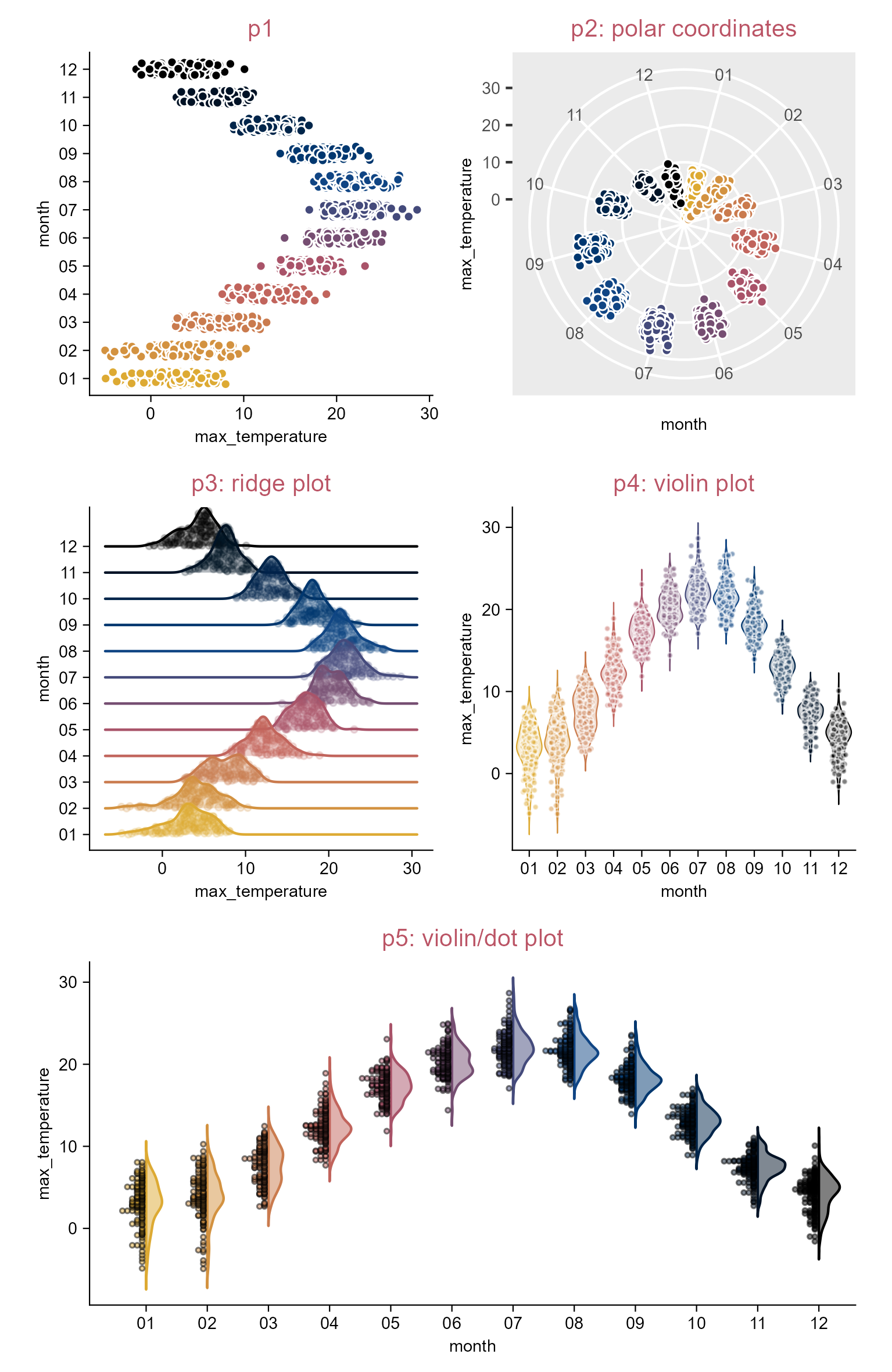
p1 <- climate |> 
  tidyplot(x = max_temperature, y = month, color = month) |> 
  add_title(title = "p1") |> remove_legend() |> 
  add_data_points_beeswarm(white_border = TRUE)

p2 <- p1 |> 
  add(ggplot2::coord_polar(theta = "y")) |> 
  theme_ggplot2() |> 
  adjust_title(
    title = "p2: polar coordinates", fontsize = 10, color = "#bb5566") |> 
  remove_legend()

p3 <- climate |> 
  tidyplot(x = max_temperature, y = month, color = month) |> 
  add_title(title = "p3: ridge plot") |> remove_legend() |> 
  add(
    ggridges::geom_density_ridges(alpha = 0.3, point_alpha = 0.2, 
      jittered_points = TRUE, point_size = 1))

p4 <- climate |> 
  tidyplot(x = month, y = max_temperature, color = month) |> 
  add_title(title = "p4: violin plot") |> 
  remove_legend() |> add_violin(trim = FALSE) |> 
  add_data_points_beeswarm(alpha = 0.5, size = 0.5, white_border = TRUE)

p5 <- climate |> 
  tidyplot(x = month, y = max_temperature, color = month) |> 
  add_title(title = "p5: violin/dot plot") |> remove_legend() |> 
  add(
    see::geom_violindot(dots_size = 12, trim = FALSE, 
      alpha = 0.5, color_dots = "#00000033"))
Note

Tidyplots is easier for many common plotting tasks.

For more complex plots, you can either augment tidyplots with custom ggplot2 code using the add() function or switch to ggplot2 for full flexibility.

Add ggplot2 (extensions) code.

3.35 Save multiple formats by piping through (e.g. dot plot)

library(tidyplots)

# View
study
# A tibble: 20 × 7
   treatment group     dose  participant   age sex    score
   <chr>     <chr>     <chr> <chr>       <dbl> <chr>  <dbl>
 1 A         placebo   high  p01            23 female     2
 2 A         placebo   high  p02            45 male       4
 3 A         placebo   high  p03            32 female     5
 4 A         placebo   high  p04            37 male       4
 5 A         placebo   high  p05            24 female     6
 6 B         placebo   low   p06            23 female     9
 7 B         placebo   low   p07            45 male       8
 8 B         placebo   low   p08            32 female    12
 9 B         placebo   low   p09            37 male      15
10 B         placebo   low   p10            24 female    16
11 C         treatment high  p01            23 female    32
12 C         treatment high  p02            45 male      35
13 C         treatment high  p03            32 female    24
14 C         treatment high  p04            37 male      45
15 C         treatment high  p05            24 female    56
16 D         treatment low   p06            23 female    23
17 D         treatment low   p07            45 male      25
18 D         treatment low   p08            32 female    21
19 D         treatment low   p09            37 male      22
20 D         treatment low   p10            24 female    23
# Plot and save
study |> 
  tidyplot(
    x = group, 
    y = score, 
    color = dose) |> 
  add_data_points_beeswarm() |> 
  add_sem_errorbar() |> 
  save_plot(
    "images/multiple-formats-via-pipe.pdf", 
    view_plot = FALSE) |> 
  save_plot(
    "images/multiple-formats-via-pipe.png", 
    view_plot = FALSE) |> 
  save_plot(
    "images/multiple-formats-via-pipe.svg", 
    view_plot = FALSE)

List the figures saved:

images/
├── multiple-formats-via-pipe.pdf
├── multiple-formats-via-pipe.png
└── multiple-formats-via-pipe.svg

Save a plot in multiple formats by piping through.

3.36 Save multiple PDFs by piping through (e.g. violin plot)

library(tidyplots)

# View top 10 rows of the columns used
gene_expression |> 
  dplyr::select(
    group, expression, condition, 
    sample_type, is_immune_gene) |> 
  dplyr::slice_head(n = 10)
# A tibble: 10 × 5
   group expression condition sample_type is_immune_gene
   <chr>      <dbl> <chr>     <chr>       <chr>         
 1 Hin         2.20 healthy   input       no            
 2 Hin         2.20 healthy   input       no            
 3 Hin         2.66 healthy   input       no            
 4 Hin         2.65 healthy   input       no            
 5 Hin         3.44 healthy   input       no            
 6 Ein         5.03 disease   input       no            
 7 Ein         5.31 disease   input       no            
 8 Ein         5.37 disease   input       no            
 9 Ein         5.54 disease   input       no            
10 Ein         5.65 disease   input       no            
# Plot and save
gene_expression |> 
  tidyplot(
    x = group, 
    y = expression, 
    color = group) |> 
  add_violin(trim = FALSE) |> 
  add_data_points_beeswarm(white_border = TRUE) |> 
  save_plot(
    "images/multiple-pdf-by-piping-1.pdf", 
    view_plot = FALSE) |> 
  split_plot(
    by = condition, 
    axis.titles = "margins") |> 
  save_plot(
    "images/multiple-pdf-by-piping-2.pdf", 
    view_plot = FALSE) |> 
  split_plot(
    by = sample_type) |> 
  save_plot(
    "images/multiple-pdf-by-piping-3.pdf", 
    view_plot = FALSE) |> 
  split_plot(
    rows = condition, 
    cols = is_immune_gene,
    axis.titles = "margins") |> 
  save_plot(
    "images/multiple-pdf-by-piping-4.pdf", 
    view_plot = FALSE)

List the figures saved:

images
├── multiple-pdf-by-piping-1.pdf
├── multiple-pdf-by-piping-2.pdf
├── multiple-pdf-by-piping-3.pdf
└── multiple-pdf-by-piping-4.pdf

The 4th PDF figure.

3.37 Save multiple PDFs at once (e.g. violin plot)

library(tidyplots)

# View 10 rows of the columns used
gene_expression |> 
  dplyr::select(
    group, 
    expression, 
    external_gene_name) |> 
  dplyr::slice(c(1:2, 101:102, 201:202, 301:302, 401:402))
# A tibble: 10 × 3
   group expression external_gene_name
   <chr>      <dbl> <chr>             
 1 Hin         2.20 Apol6             
 2 Hin         2.20 Apol6             
 3 Hin         7.39 Vgf               
 4 Hin         6.86 Vgf               
 5 Hin         8.21 Dpf2              
 6 Hin         8.29 Dpf2              
 7 Hin         5.87 Ankrd54           
 8 Hin         5.62 Ankrd54           
 9 Hin         7.84 Fam96b            
10 Hin         7.52 Fam96b            
# Plot and save
gene_expression |> 
  tidyplot(
    x = group, 
    y = expression, 
    color = group) |> 
  add_violin(trim = FALSE) |> 
  add_data_points_beeswarm(white_border = TRUE) |>   
  adjust_size(overall_width = 100) |> # see the note of next page
  adjust_theme_details(
    strip.text.x.top = ggplot2::element_text(face = "italic")) |> # gene names in italic
  split_plot(
    by = external_gene_name, 
    ncol = 2, 
    nrow = 2) |> 
  save_plot(
    "images/multiple-pdf-at-once.pdf", 
    multiple_files = TRUE, 
    view_plot = FALSE)

List the figure names saved:

images/
├── multiple-pdf-at-once_01.pdf
├── multiple-pdf-at-once_02.pdf
├── multiple-pdf-at-once_03.pdf
├── multiple-pdf-at-once_04.pdf
├── multiple-pdf-at-once_05.pdf
├── multiple-pdf-at-once_06.pdf
├── multiple-pdf-at-once_07.pdf
├── multiple-pdf-at-once_08.pdf
├── multiple-pdf-at-once_09.pdf
└── multiple-pdf-at-once_10.pdf

The 10th PDF figure.
Note

The overall_width and overall_height parameters of the adjust_size() function control the overall dimensions of a multiplot layout generated with split_plot().

The function adjust_theme_details() is a wrapper around ggplot2::theme().

3.38 Save intermediate stages (e.g. bar plot)

library(tidyplots)

# View top 10 rows of the columns used
study |> dplyr::select(treatment, score) |> 
  dplyr::slice_head(n = 10)
# A tibble: 10 × 2
   treatment score
   <chr>     <dbl>
 1 A             2
 2 A             4
 3 A             5
 4 A             4
 5 A             6
 6 B             9
 7 B             8
 8 B            12
 9 B            15
10 B            16
# Plot and save
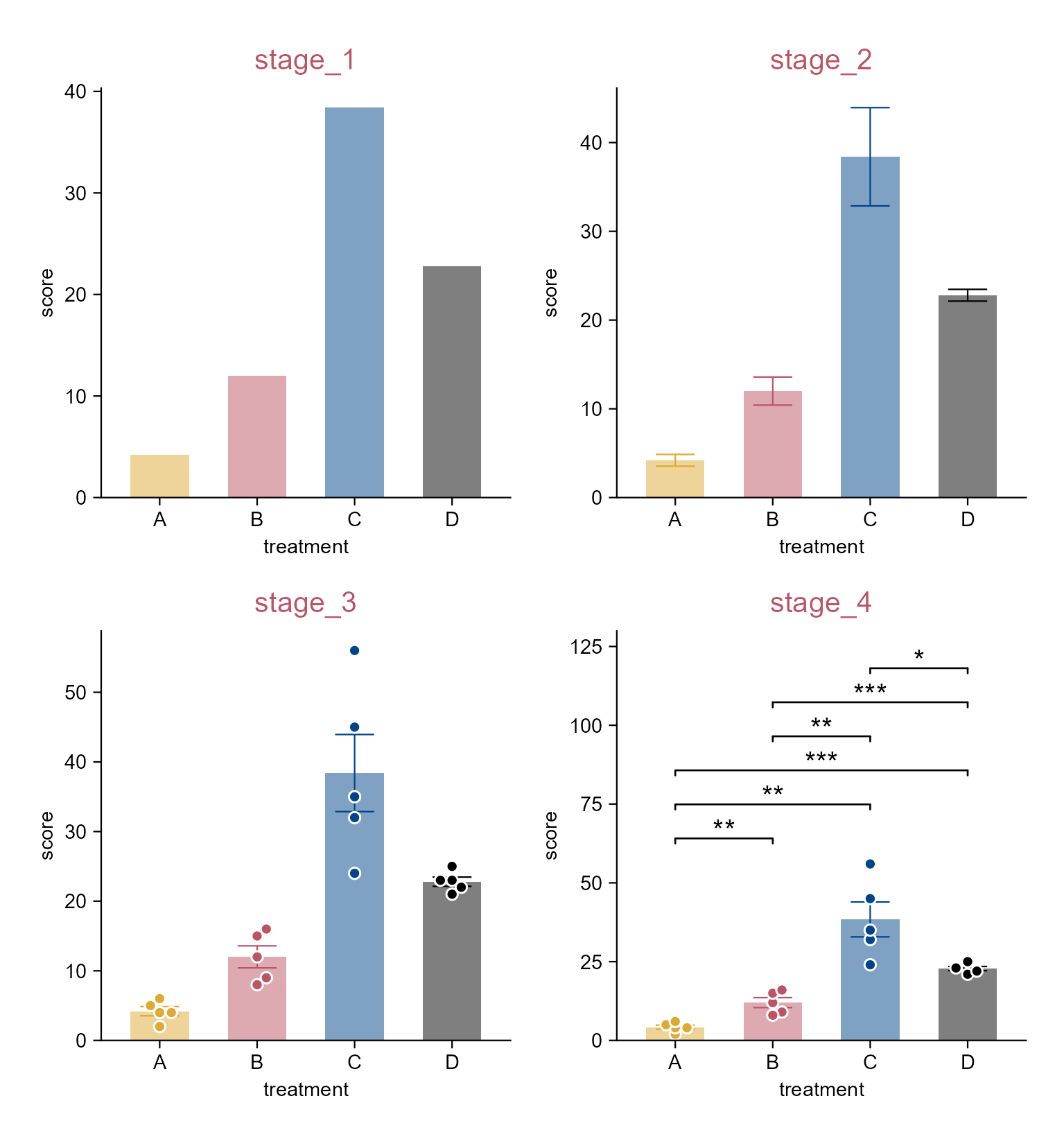
study |> 
  tidyplot(
    x = treatment, 
    y = score, 
    color = treatment) |> 
  add_mean_bar(alpha = 0.5) |> 
  adjust_legend_position(position = "none") |> 
  add_title("stage_1") |> 
  save_plot(
    "images/stage_1.png", 
    view_plot = FALSE) |> 
  adjust_title("stage_2") |> 
  add_sem_errorbar() |> 
  save_plot(
    "images/stage_2.png", 
    view_plot = FALSE) |> 
  adjust_title("stage_3") |> 
  add_data_points_beeswarm(white_border = TRUE) |> 
  save_plot(
    "images/stage_3.png", 
    view_plot = FALSE) |> 
  adjust_title("stage_4") |> 
  add_test_asterisks(hide_info = TRUE) |> 
  save_plot(
    "images/stage_4.png", 
    view_plot = FALSE)

List the figures saved:

images/
├── stage_1.png
├── stage_2.png
├── stage_3.png
└── stage_4.png

Save intermediate stages.

3.39 Panel and plot padding

library(tidyplots)

# View top 10 rows of the columns used
animals |> dplyr::select(weight, size) |> 
  dplyr::slice_head(n = 10)
# A tibble: 10 × 2
      weight  size
       <dbl> <dbl>
 1 0.00012     1.5
 2 0.00045    10  
 3 0.0002     10  
 4 0.00002     2.5
 5 0.003      17  
 6 0.0000025   1  
 7 0.000005    4  
 8 0.00001     0.8
 9 0.0002      7.5
10 0.0004      9  
# Plot
p1 <- animals |> 
  tidyplot(x = weight, y = size, color = size, paper = "#dddddd") |> 
  add_data_points(white_border = TRUE, size = 3) |> 
  add_title(title = "p1") |> 
  remove_legend()

p2 <- p1 |> 
  adjust_title(title = "p2: different padding in four panel sides") |> 
  adjust_padding(
    top = 0.2, 
    right = 0.3, 
    bottom = 0.4, 
    left = 0.5)

p3 <- p1 |> 
  adjust_title(title = "p3: same padding in four panel sides") |> 
  adjust_padding(
    all = 0.2)

p4 <- p1 |> 
  adjust_title(title = "p4: remove panel padding") |> 
  remove_padding()

p5 <- p1 |> 
  adjust_title(title = "p5: different padding in four plot sides") |> 
  adjust_theme_details(
    plot.margin = ggplot2::margin(t = 0.5, r = 0.5, b = 1, l = 1, unit = "cm"))

p6 <- p1 |> 
  adjust_title(title = "p6: same plot padding via saving") |> 
  save_plot(
    "images/plot_panel_padding_p6.png", 
    padding = 0.3) # defaults to 0.1 meaning 10%

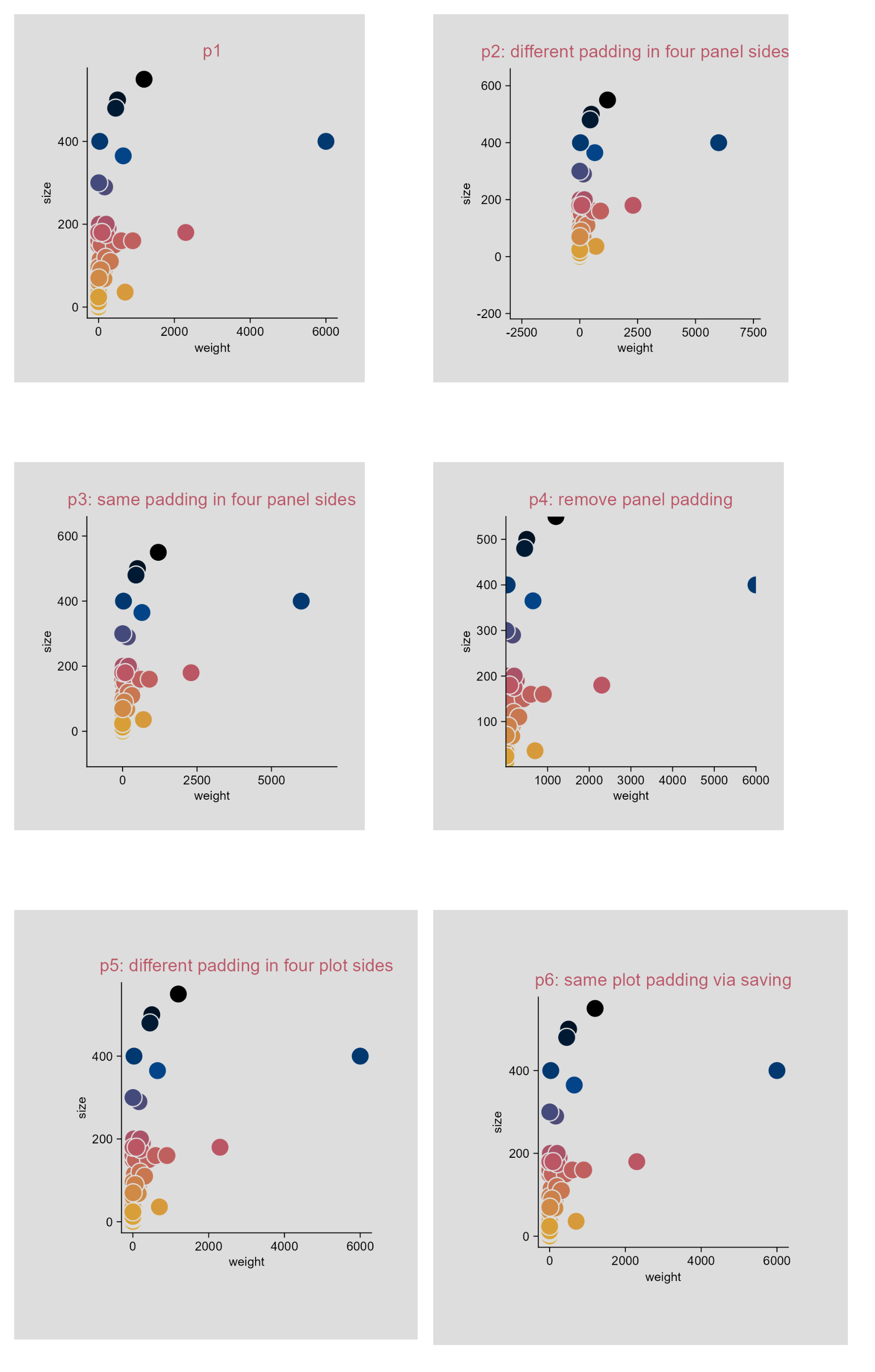
Panel and plot padding.

3.40 Use a log10 axis for data containing zero and negative values (e.g. dot plot)

library(tidyplots)

set.seed(42)

y <- runif(n = 500, min = 0, max = 100)

# change 30 values to zero
y[sample(NROW(y), size = 30)] <- 0

df <- tibble::tibble(x = "test", y = c(y, y * -1))

# View rows 496 - 505
df |> 
  dplyr::slice(496:505)
# A tibble: 10 × 2
   x          y
   <chr>  <dbl>
 1 test   18.3 
 2 test    0   
 3 test   30.5 
 4 test   16.6 
 5 test    3.28
 6 test  -91.5 
 7 test  -93.7 
 8 test  -28.6 
 9 test  -83.0 
10 test  -64.2 

# Plot
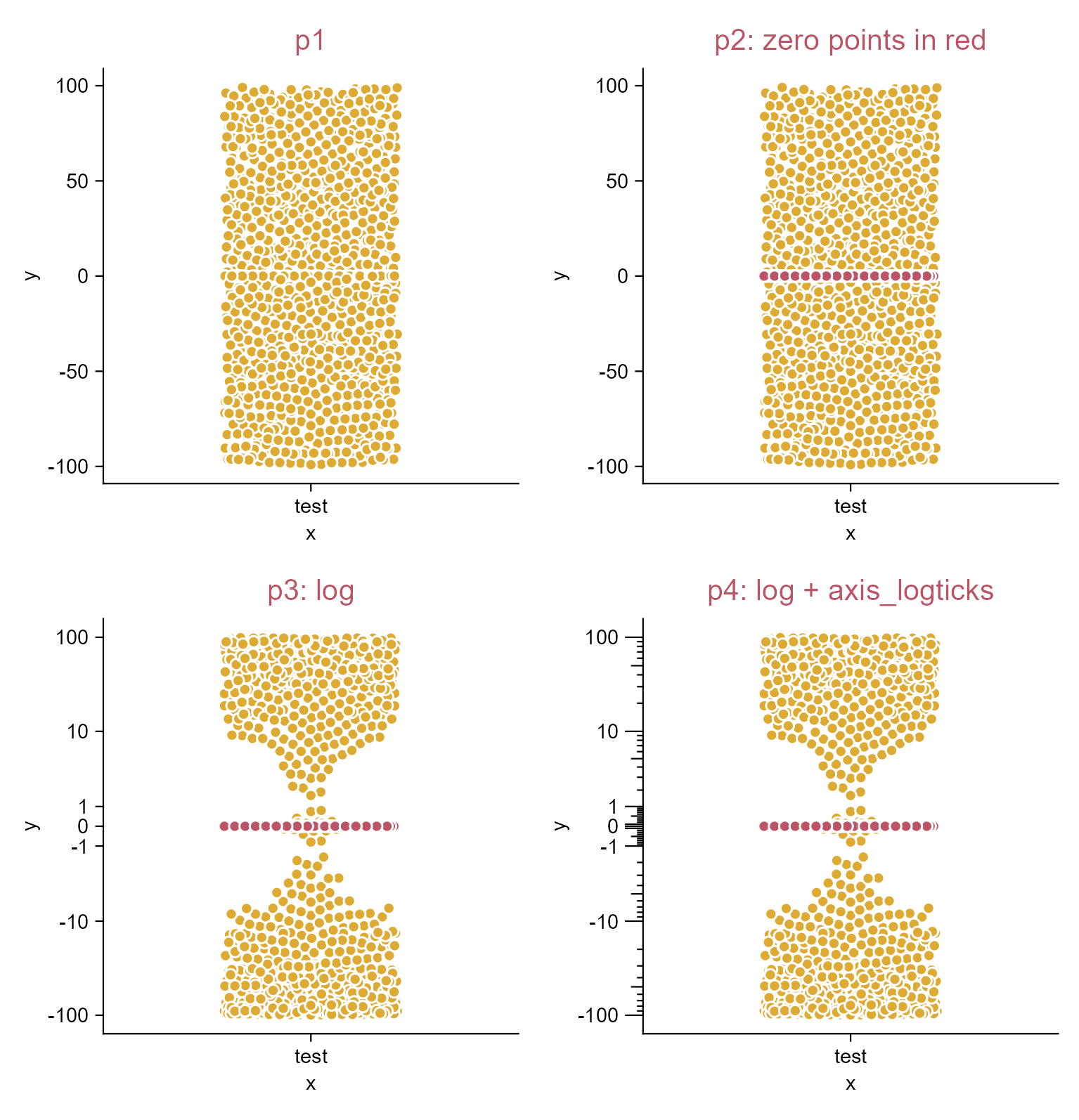
p1 <- df |> 
  tidyplot(
    x = x, 
    y = y) |> 
  add_data_points_beeswarm(white_border = TRUE) |>  
  add_title(title = "p1")

p2 <- p1 |> 
  adjust_title(title = "p2: zero points in red") |> 
  add_data_points_beeswarm(
    data = filter_rows(y == 0), 
    white_border = TRUE, 
    color = "#bb5566")

p3 <- p2 |> 
  adjust_title(title = "p3: log") |> 
  adjust_y_axis(
    transform = "pseudo_log", 
    breaks = c(-100, -10, -1, 0, 1, 10, 100))

p4 <- p3 |> 
  adjust_title(title = "p4: log + axis_logticks") |> 
  add(ggplot2::guides(y = "axis_logticks"))

Log10 axis for data containing zero and negative values.

3.41 Change plot themes (e.g. dot plot)

library(tidyplots)

# View top 10 rows of the columns used
study |> 
  dplyr::select(treatment, score) |> 
  dplyr::slice_head(n = 10)
# A tibble: 10 × 2
   treatment score
   <chr>     <dbl>
 1 A             2
 2 A             4
 3 A             5
 4 A             4
 5 A             6
 6 B             9
 7 B             8
 8 B            12
 9 B            15
10 B            16
# Plot
p0 <- study |> 
  tidyplot(x = treatment, y = score, color = treatment) |> 
  add_data_points() |> 
  add_median_dash() |> 
  add_sem_errorbar()

p1 <- p0 |>
  add_title(title = "p1: theme_tidyplot (default)")

p2 <- p0 |>
  add_title(title = "p2: theme_ggplot2") |> 
  theme_ggplot2() |> 
  adjust_title(fontsize = 10, color = "#bb5566")

p3 <- p0 |>
  add_title(title = "p3: theme_minimal_x") |> 
  theme_minimal_x() |> 
  adjust_title(fontsize = 10, color = "#bb5566")

p4 <- p0 |>
  add_title(title = "p4: theme_minimal_y") |> 
  theme_minimal_y() |> 
  adjust_title(fontsize = 10, color = "#bb5566")

p5 <- p0 |>
  add_title(title = "p5: theme_minimal_xy") |> 
  theme_minimal_xy() |> 
  adjust_title(fontsize = 10, color = "#bb5566")

p6 <- p0 |>
  add_title(title = "p6: ggplot2::theme_void") |>
  add(ggplot2::theme_void()) |> 
  adjust_title(fontsize = 10, color = "#bb5566")

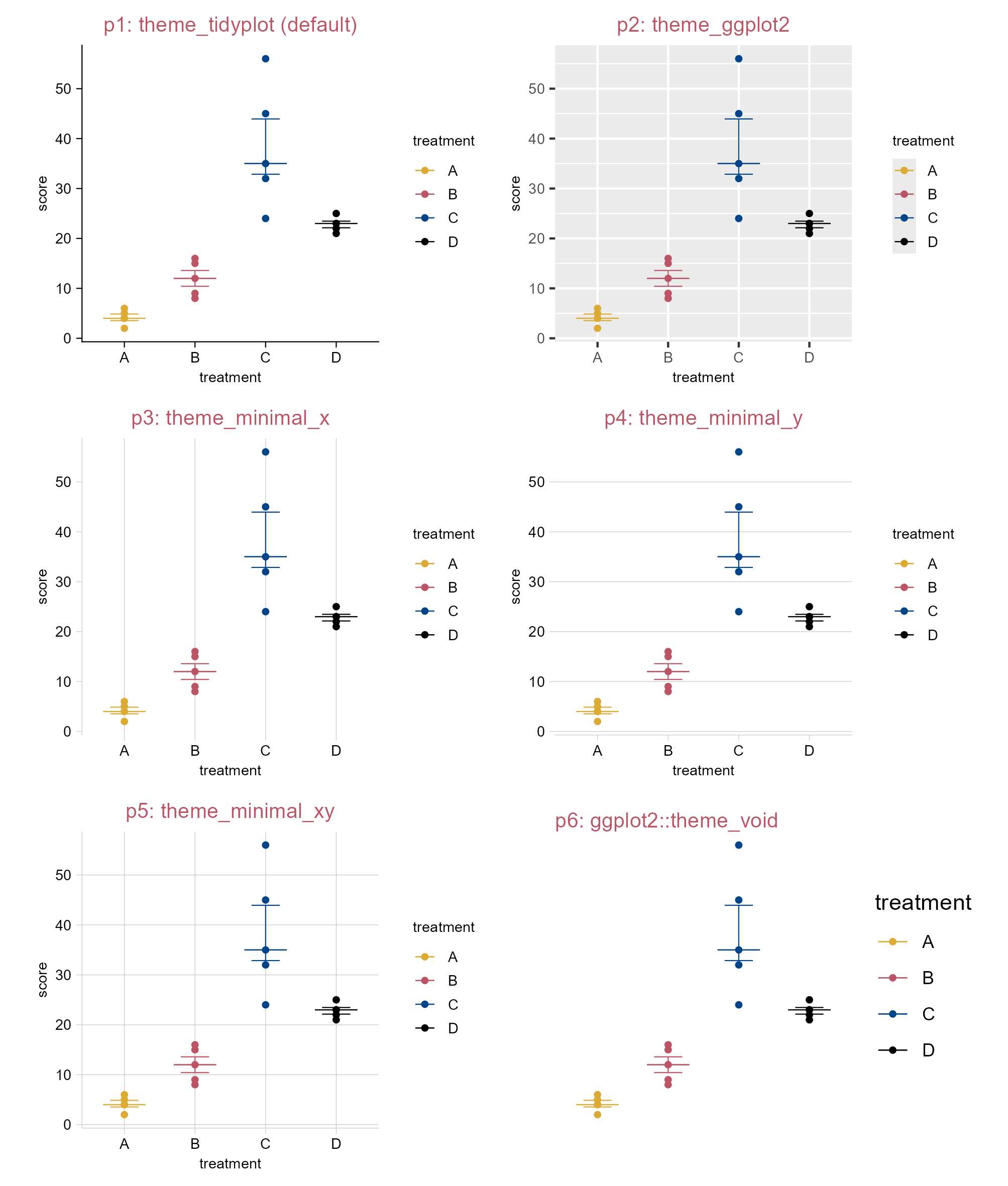
Change plot themes.

3.42 Rasterize data points (e.g. dot plot) selectively

Tip

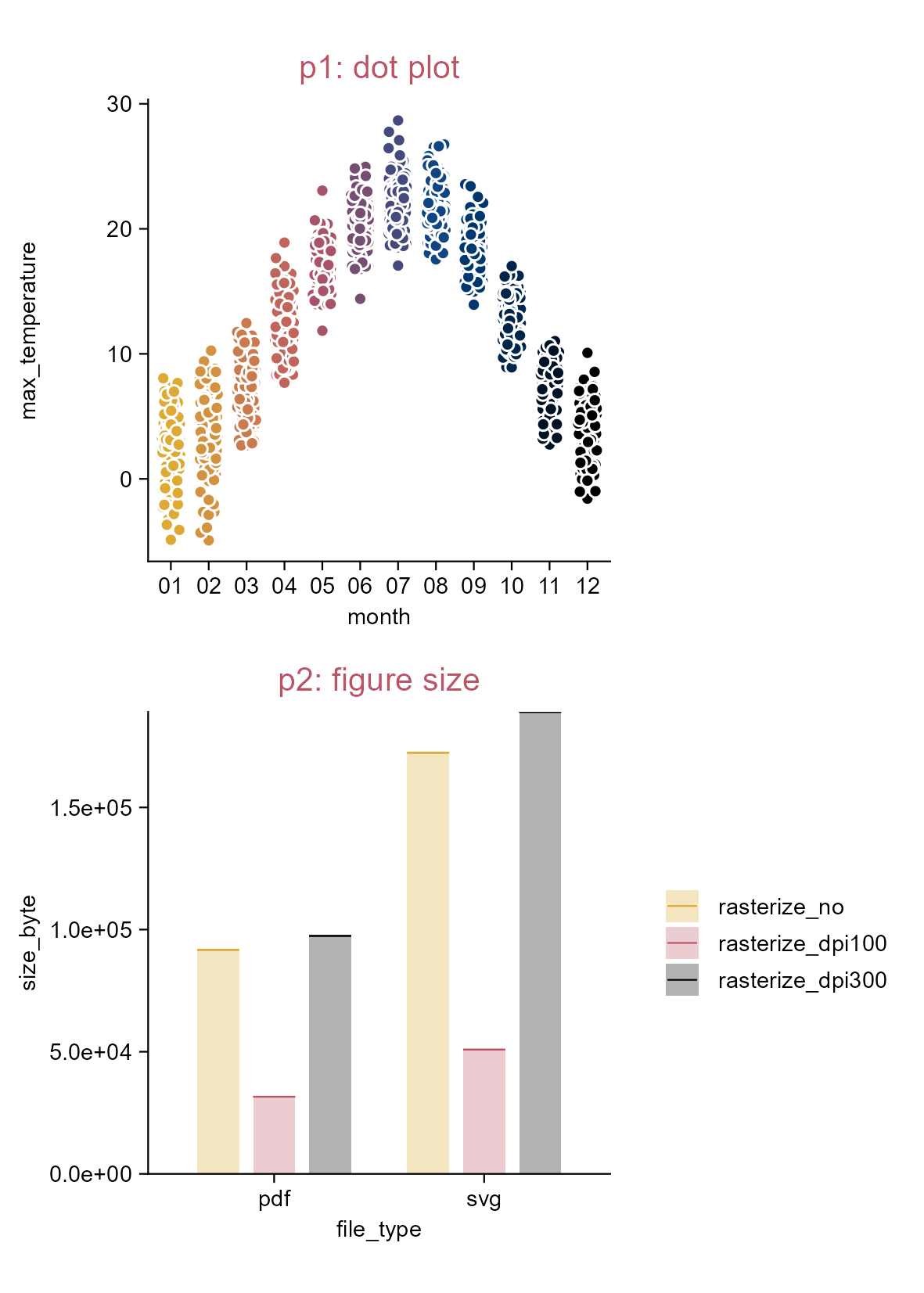
Too many vector shapes can or might slow down software performance. This is how you can selectively rasterize data points.

library(tidyplots)
library(svglite)

# View top 10 rows of the columns used
climate |> 
  dplyr::select(month, max_temperature) |> 
  dplyr::slice_head(n = 10)
# A tibble: 10 × 2
   month max_temperature
   <chr>           <dbl>
 1 01              -1.49
 2 02               3.37
 3 03               5.05
 4 04               8.34
 5 05              16.2 
 6 06              18.2 
 7 07              20.5 
 8 08              18.2 
 9 09              18.3 
10 10              14.2 
# Save vector images without rasterization
climate |> 
  tidyplot(x = month, y = max_temperature, color = month) |> 
  add_data_points_beeswarm(white_border = TRUE) |> 
  adjust_legend_position(position = "none") |> 
  save_plot("images/rasterize_data-points_no.pdf", view_plot = FALSE) |> 
  save_plot("images/rasterize_data-points_no.svg", view_plot = FALSE)

# Save vector images with rasterization (dpi = 100)
climate |> 
  tidyplot(x = month, y = max_temperature, color = month) |> 
  add_data_points_beeswarm(
    white_border = TRUE, 
    rasterize = TRUE, 
    rasterize_dpi = 100) |> 
  adjust_legend_position(position = "none") |> 
  save_plot("images/rasterize_data-points_yes_dpi100.pdf", view_plot = FALSE) |> 
  save_plot("images/rasterize_data-points_yes_dpi100.svg", view_plot = FALSE)

# Save vector images with rasterization (dpi = 300)
climate |> 
  tidyplot(x = month, y = max_temperature, color = month) |> 
  add_data_points_beeswarm(
    white_border = TRUE, 
    rasterize = TRUE, 
    rasterize_dpi = 300) |> 
  adjust_legend_position(position = "none") |> 
  save_plot("images/rasterize_data-points_yes_dpi300.pdf", view_plot = FALSE) |> 
  save_plot("images/rasterize_data-points_yes_dpi300.svg", view_plot = FALSE)

List the figures saved:

images
├── rasterize_data-points_no.pdf
├── rasterize_data-points_no.svg
├── rasterize_data-points_yes_dpi100.pdf
├── rasterize_data-points_yes_dpi100.svg
├── rasterize_data-points_yes_dpi300.pdf
└── rasterize_data-points_yes_dpi300.svg

Rasterize data points selectively.